
Create an Account and Authenticate
To use Spatial Ops Manager, your venue must have an organization account. The owner creates this account and can then invite additional users (employees) to join.
Account setup is the same on Meta Quest and PICO Enterprise — one organization holds your Manager accounts and your venues, called locations, and each location has its own headsets and maps.
Access the Manager portal at: https://manager.spatialops.com
Create an Organization Owner Account
Section titled “Create an Organization Owner Account”-
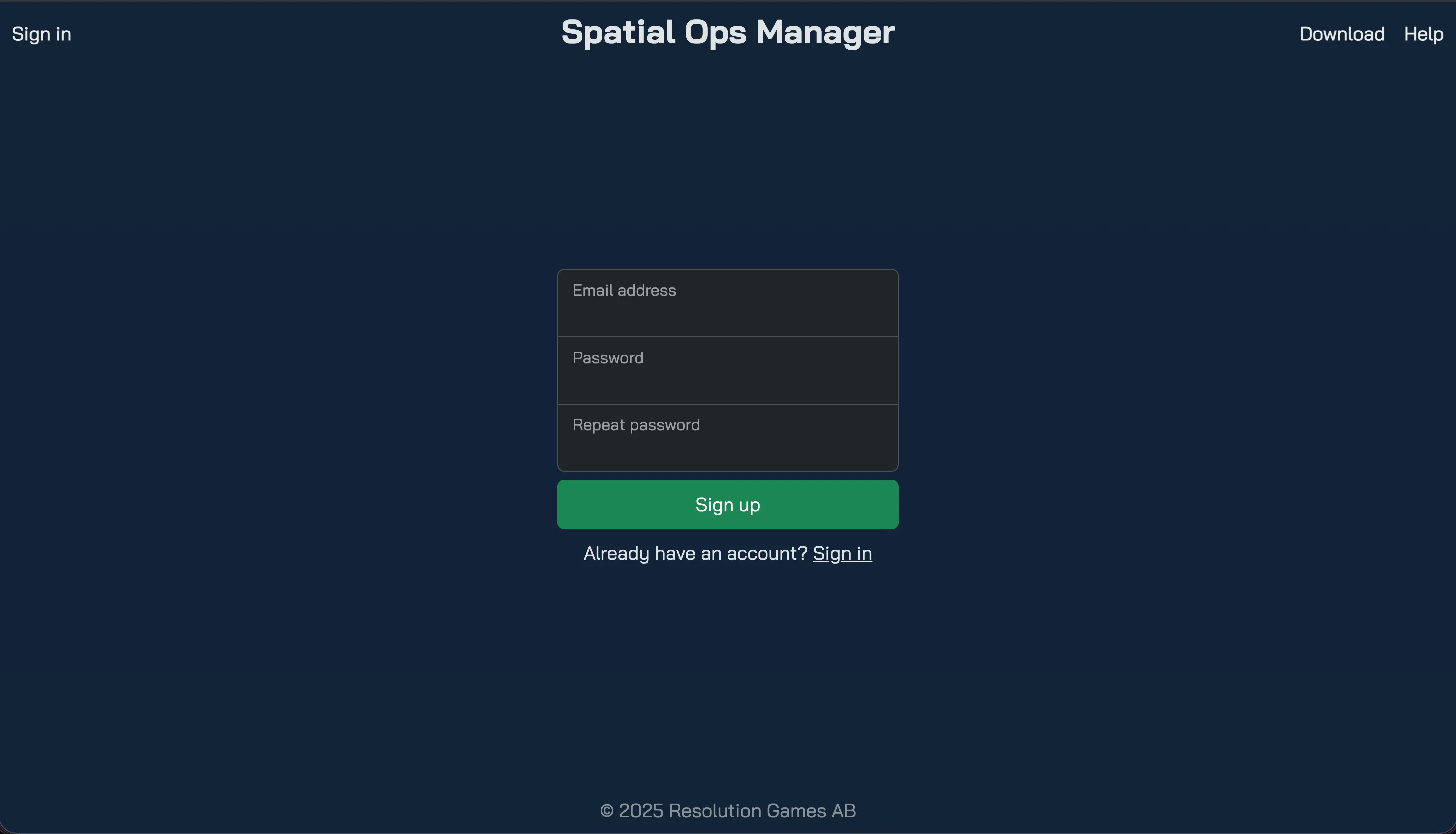
Go to the Manager portal and register your owner account.

-
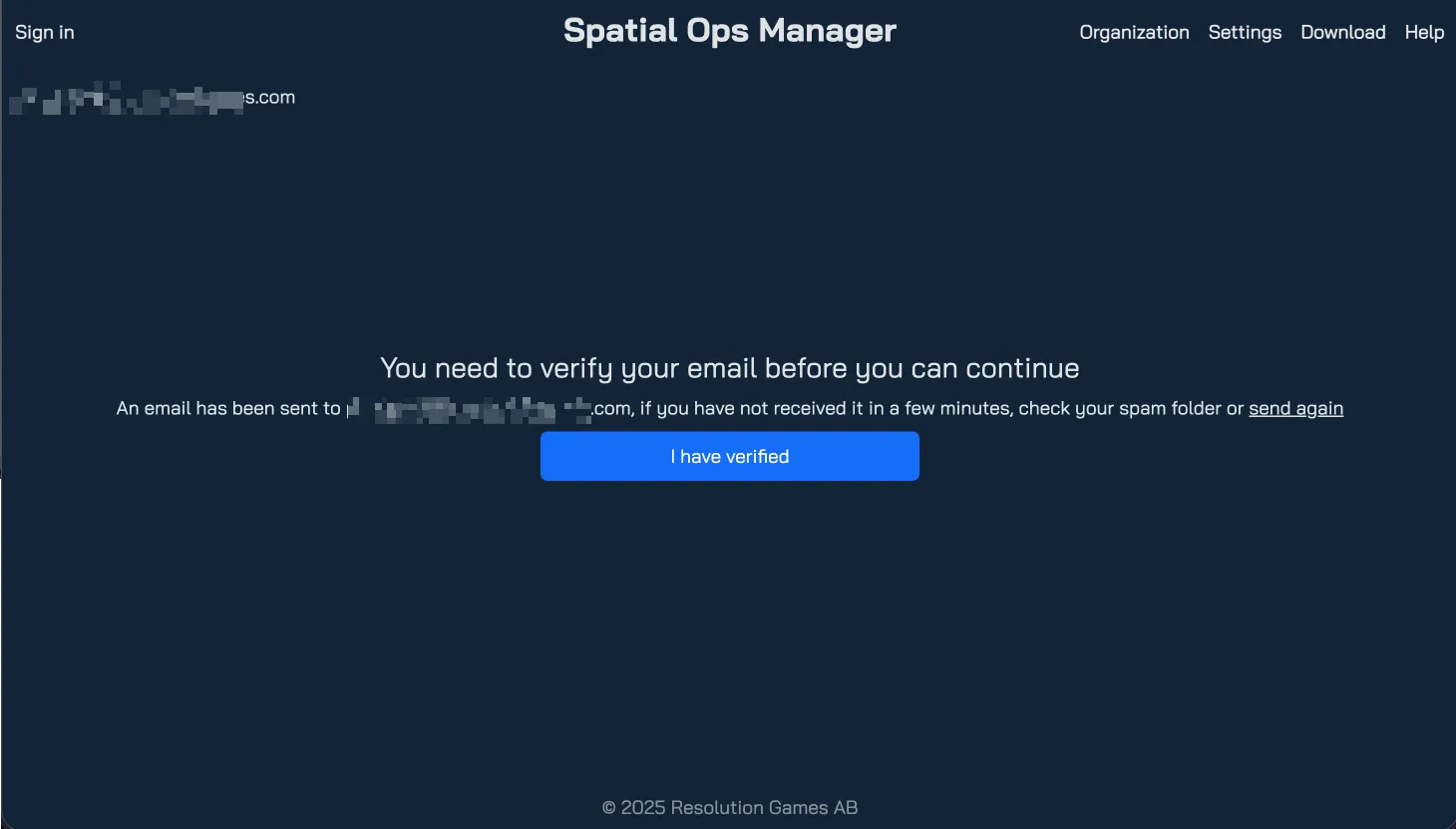
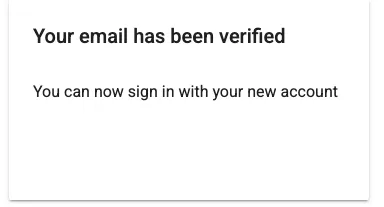
Verify your email address by following the link sent to your inbox.
-
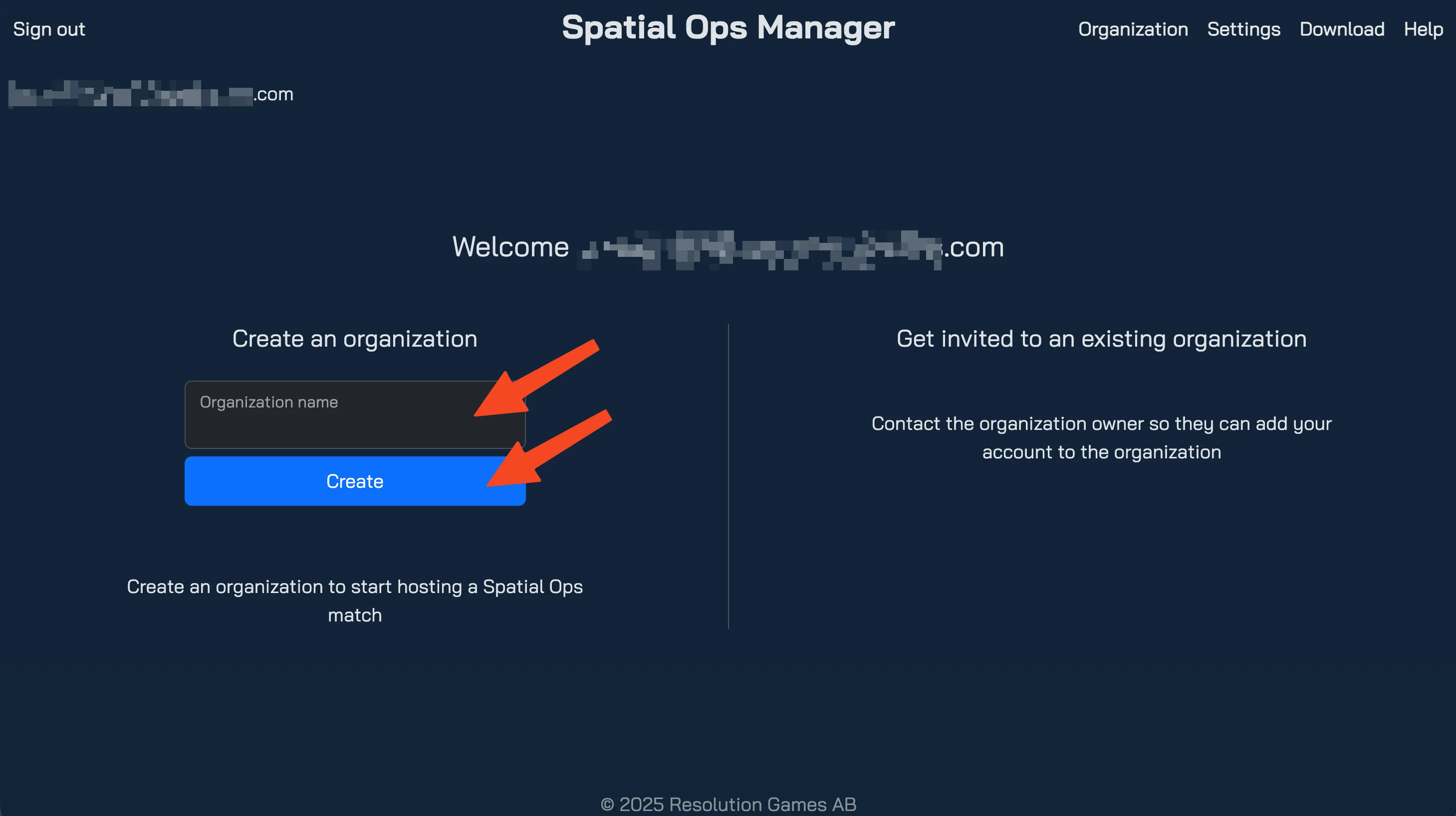
Create your organization by entering a name and clicking Create.
-
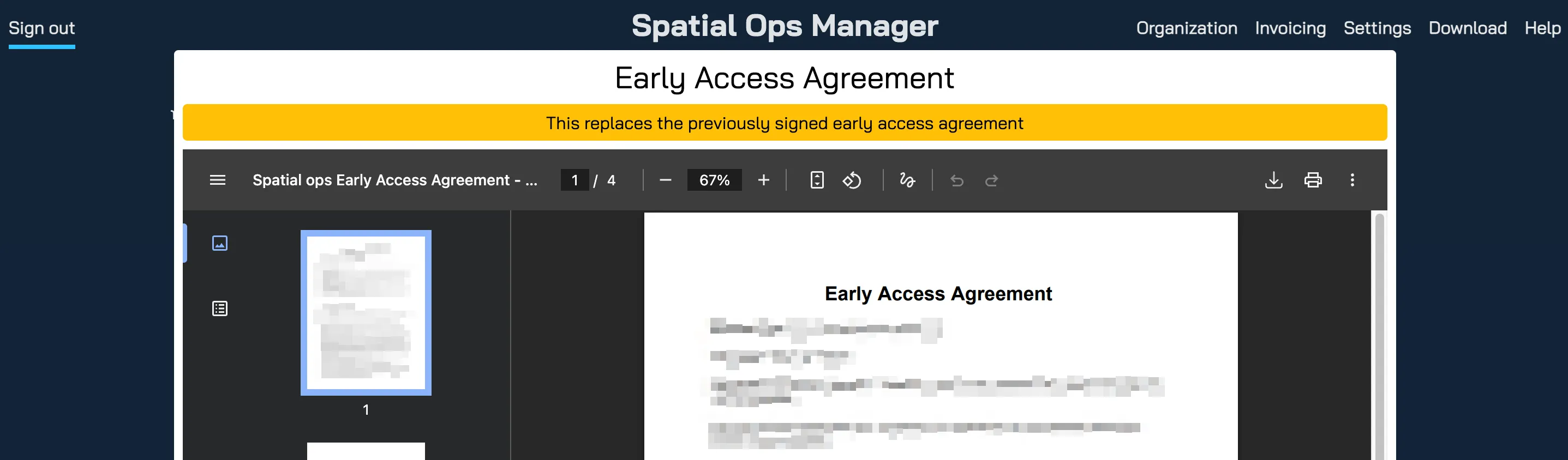
Review and accept the Access Agreement.

-
Set up billing: enter your billing information and save a payment method in Paddle’s checkout, then select Continue. Nothing is charged at this point. See Billing and Payments.
-
Once completed, your organization is created and you are ready to use Spatial Ops Manager.
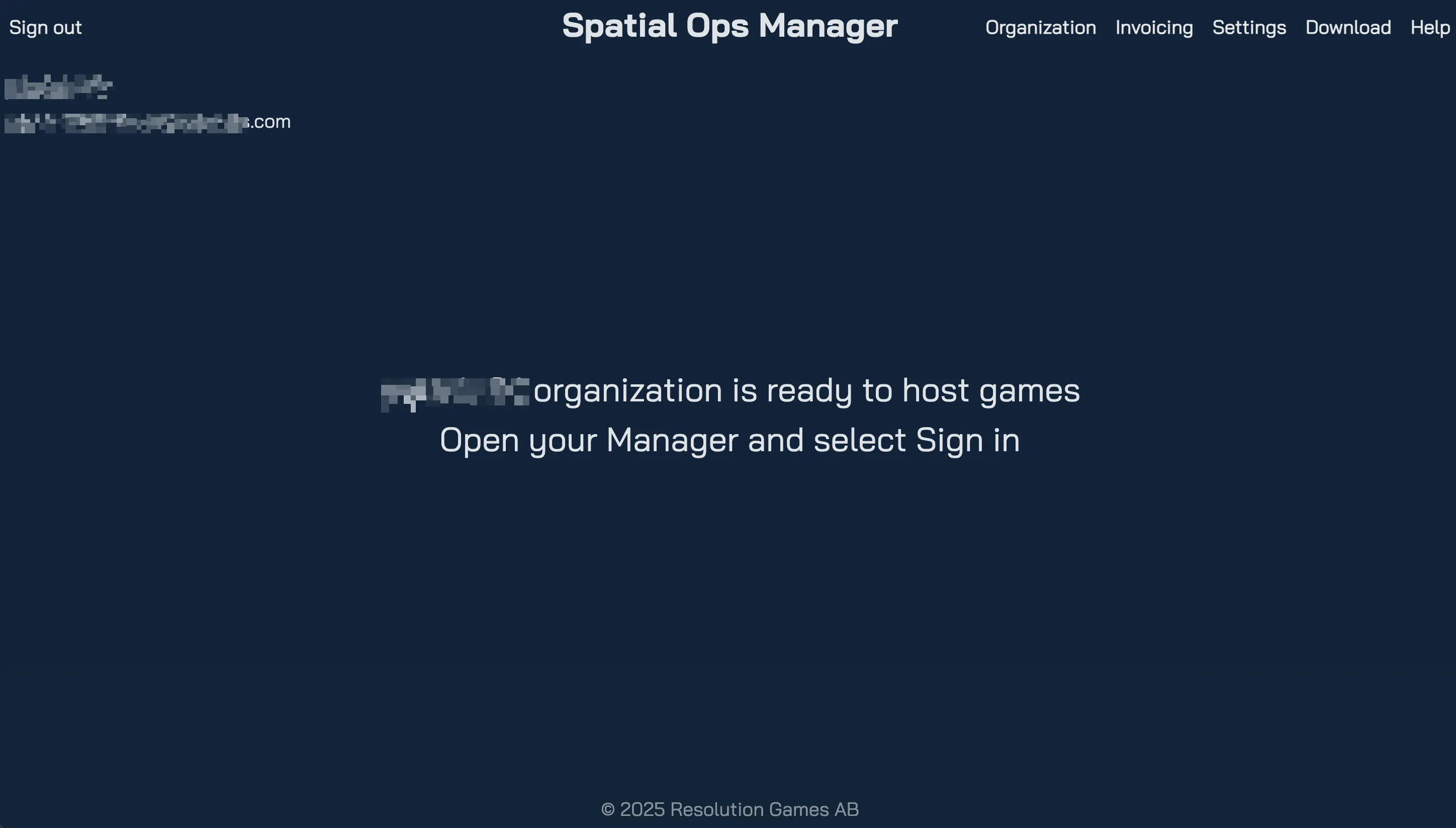
Its first location is created with it and takes the organization’s name; you can add more from the Locations page.
Add Additional Users to Your Organization
Section titled “Add Additional Users to Your Organization”Users join a location rather than the whole organization. The steps below invite them to one location; see Locations for more.
-
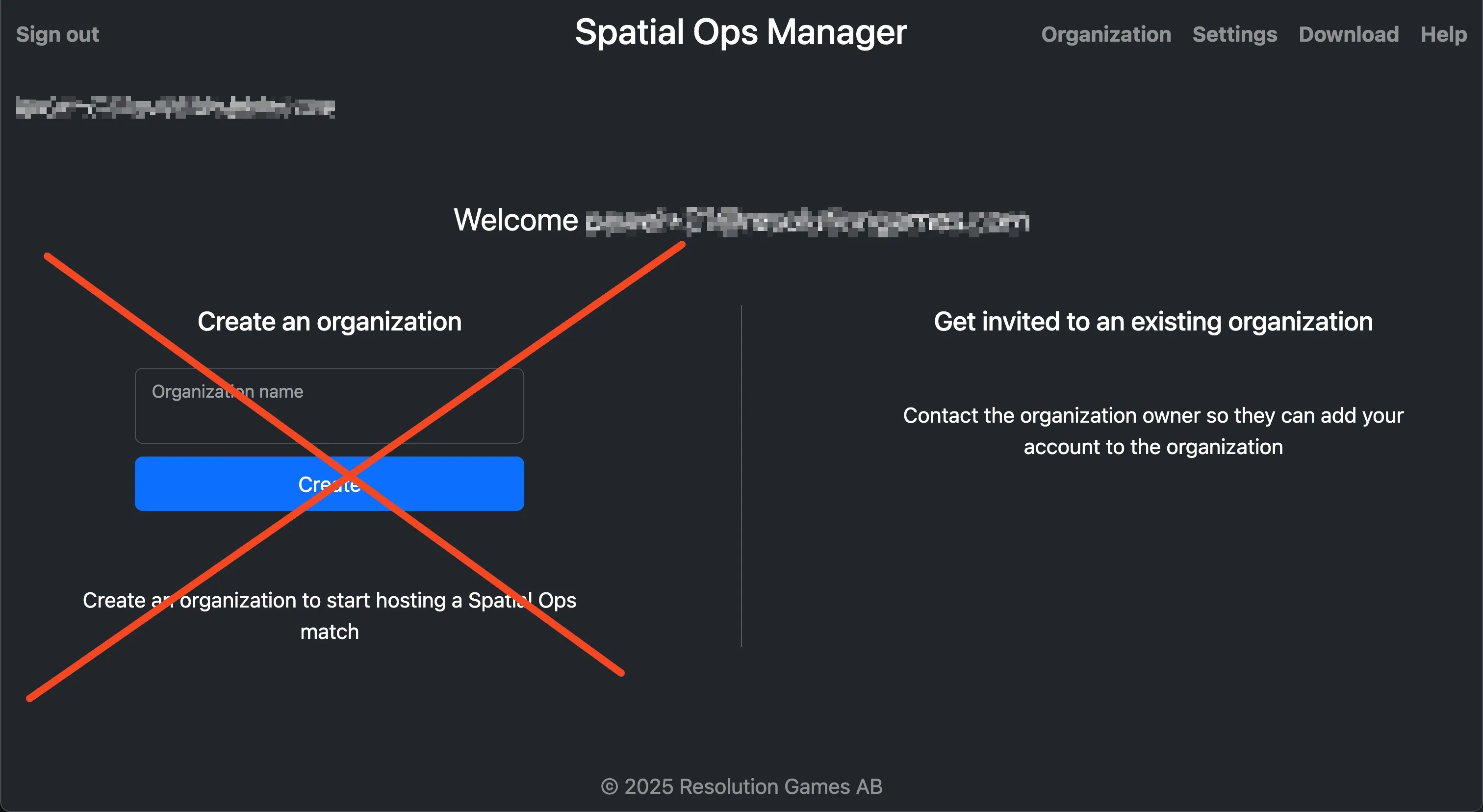
Ask the additional user (e.g. your employee) to go to the Manager portal and create a user account.
-
They should not create a new organization.
-
Collect the email address associated with their account.
-
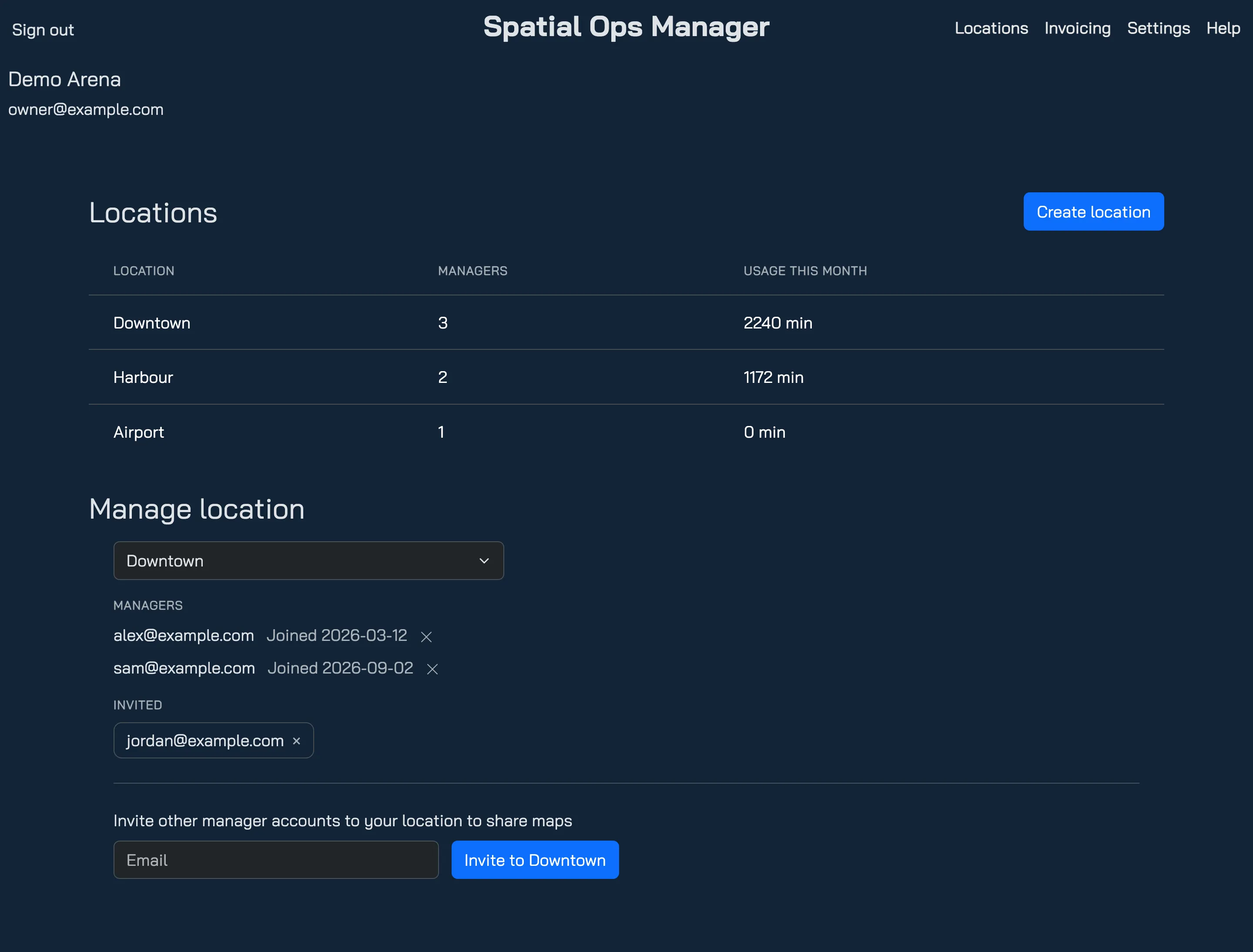
Open Locations in the top menu, choose the location under Manage location, enter that email address and select Invite to location name.
-
They sign in at the Manager portal, open Invitations in the top menu and accept the invitation (✓). Until they do, the Manager app shows them neither the location nor its maps.
-
Invited users will appear under Managers in Manage location.
-
From then on, they will have access to the maps and headsets of the locations they joined.
Log in to the Spatial Ops Manager application
Section titled “Log in to the Spatial Ops Manager application”-
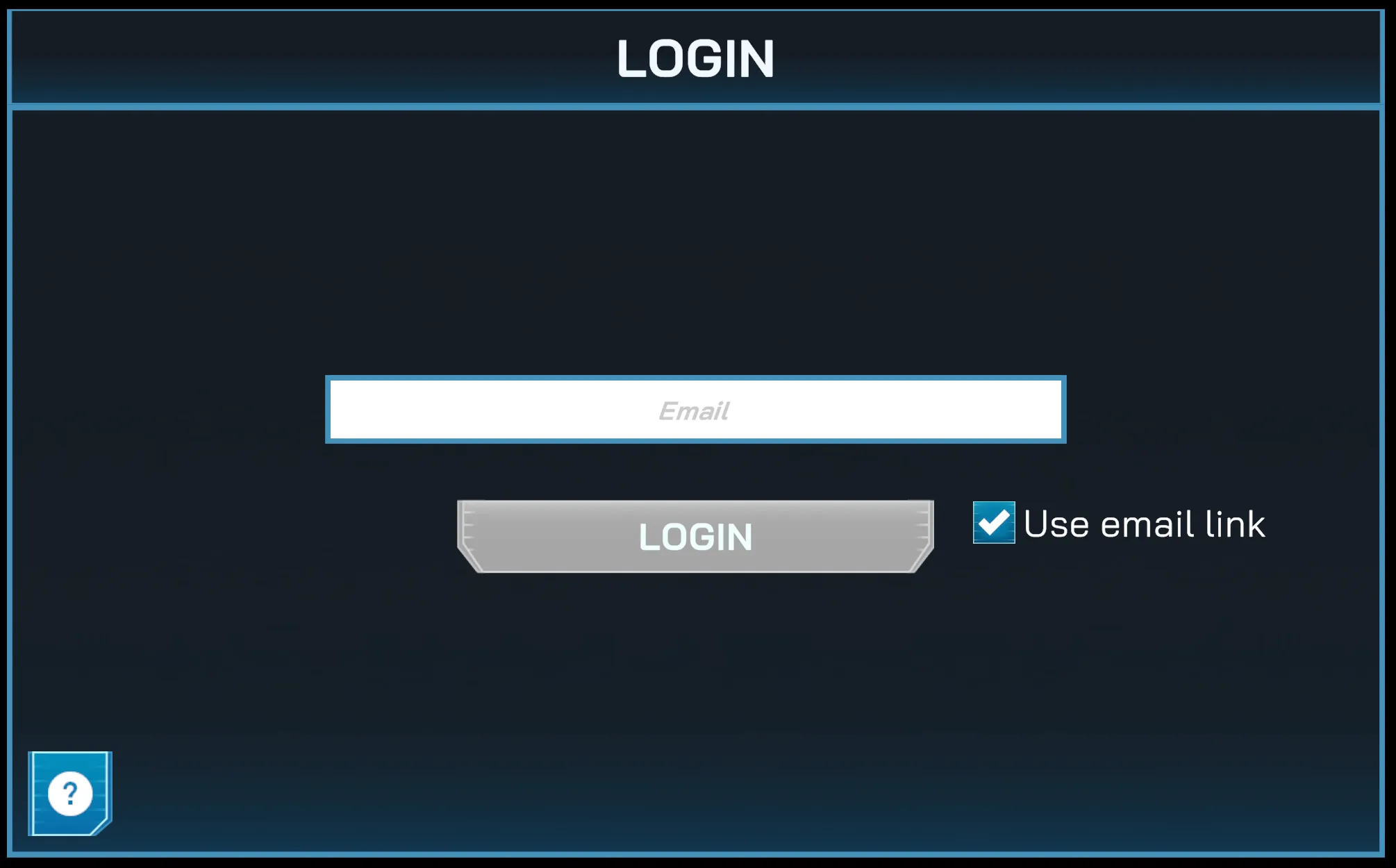
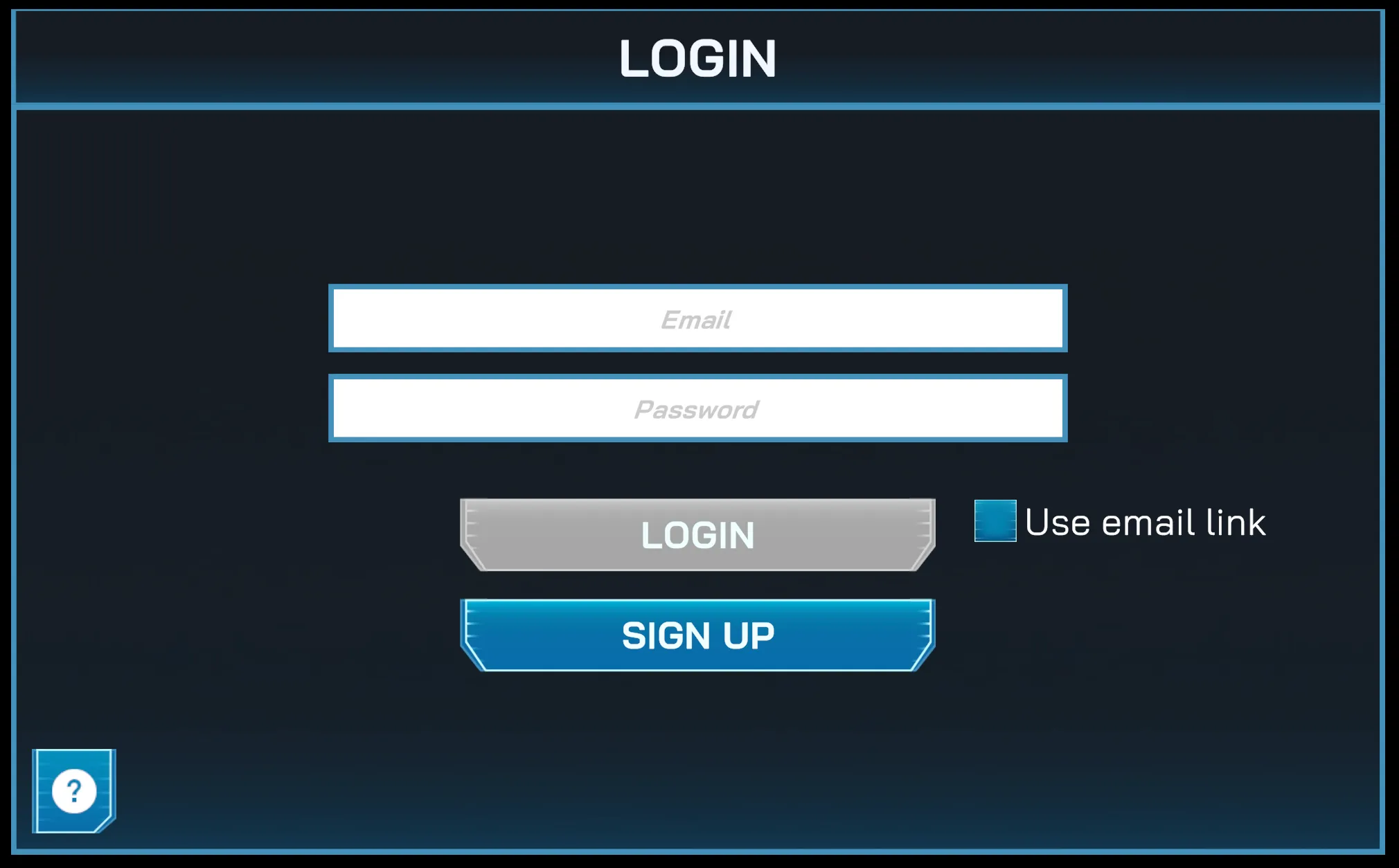
Log in with the credentials you created during registration (either owner or invited user).
-
Alternatively, use a magic link to authenticate without entering a password.