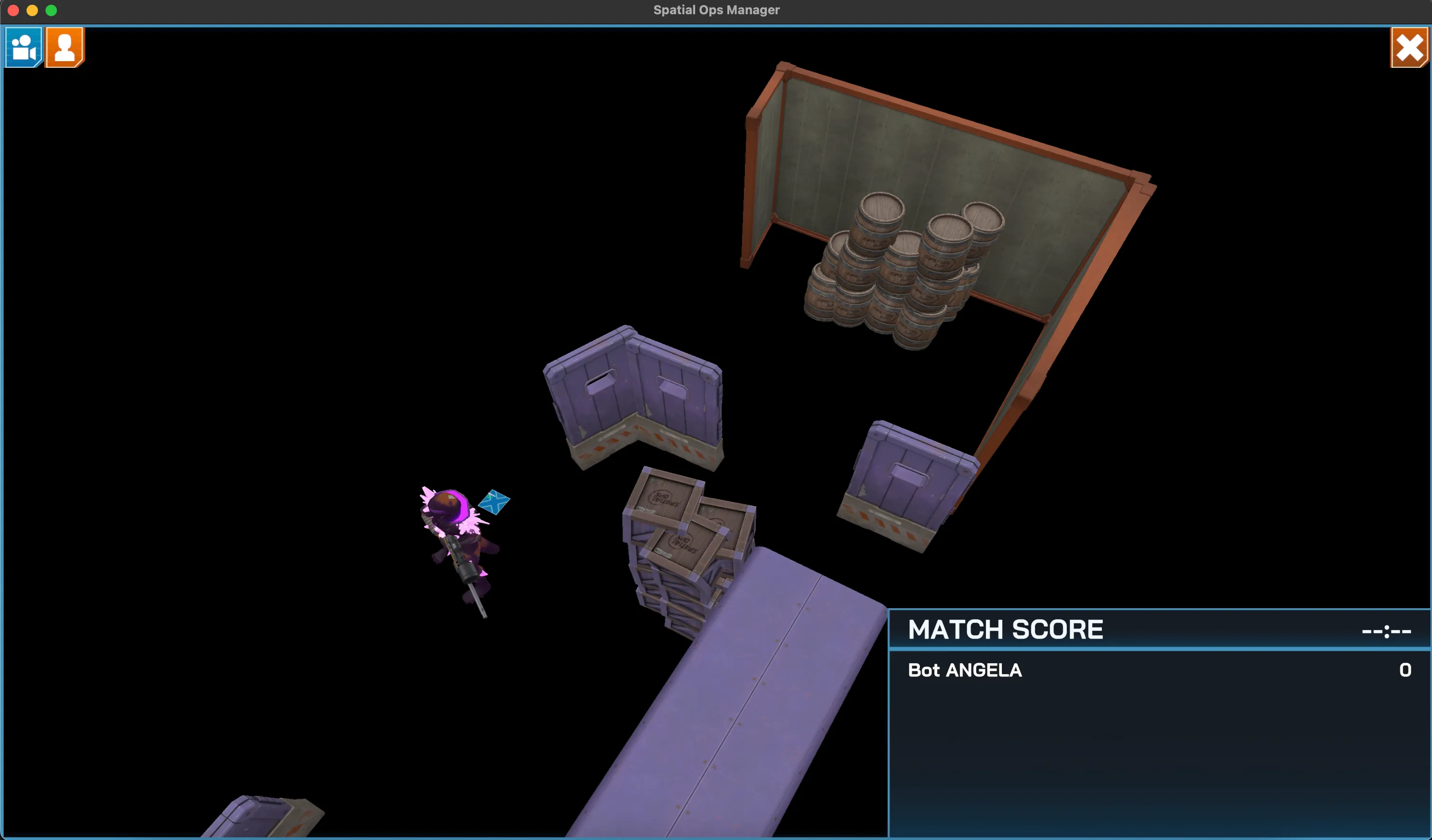
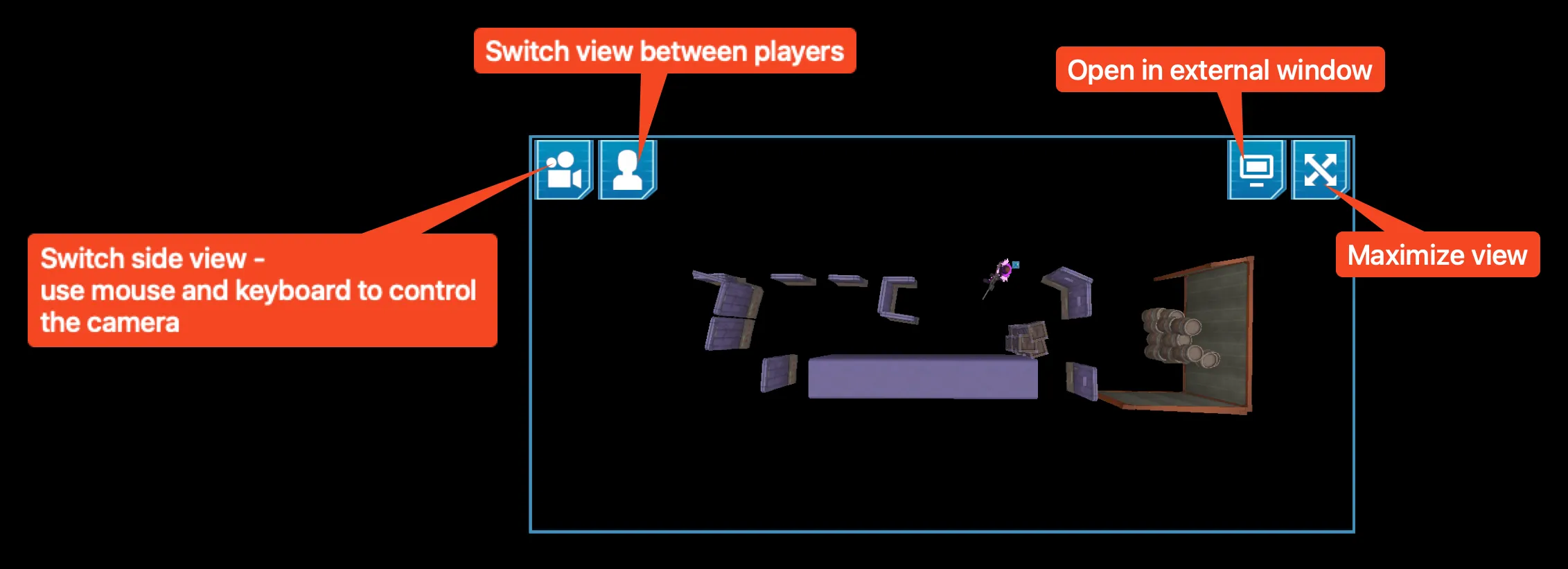
Gameplay Preview (without Pass-Through)
You can adjust mouse sensitivity for camera controls in App Settings > Input.
Options
Section titled “Options”- Switch Side View — toggle a free camera view; use mouse + keyboard to move around.
- Switch Player View — cycle between first-person perspectives of connected players.
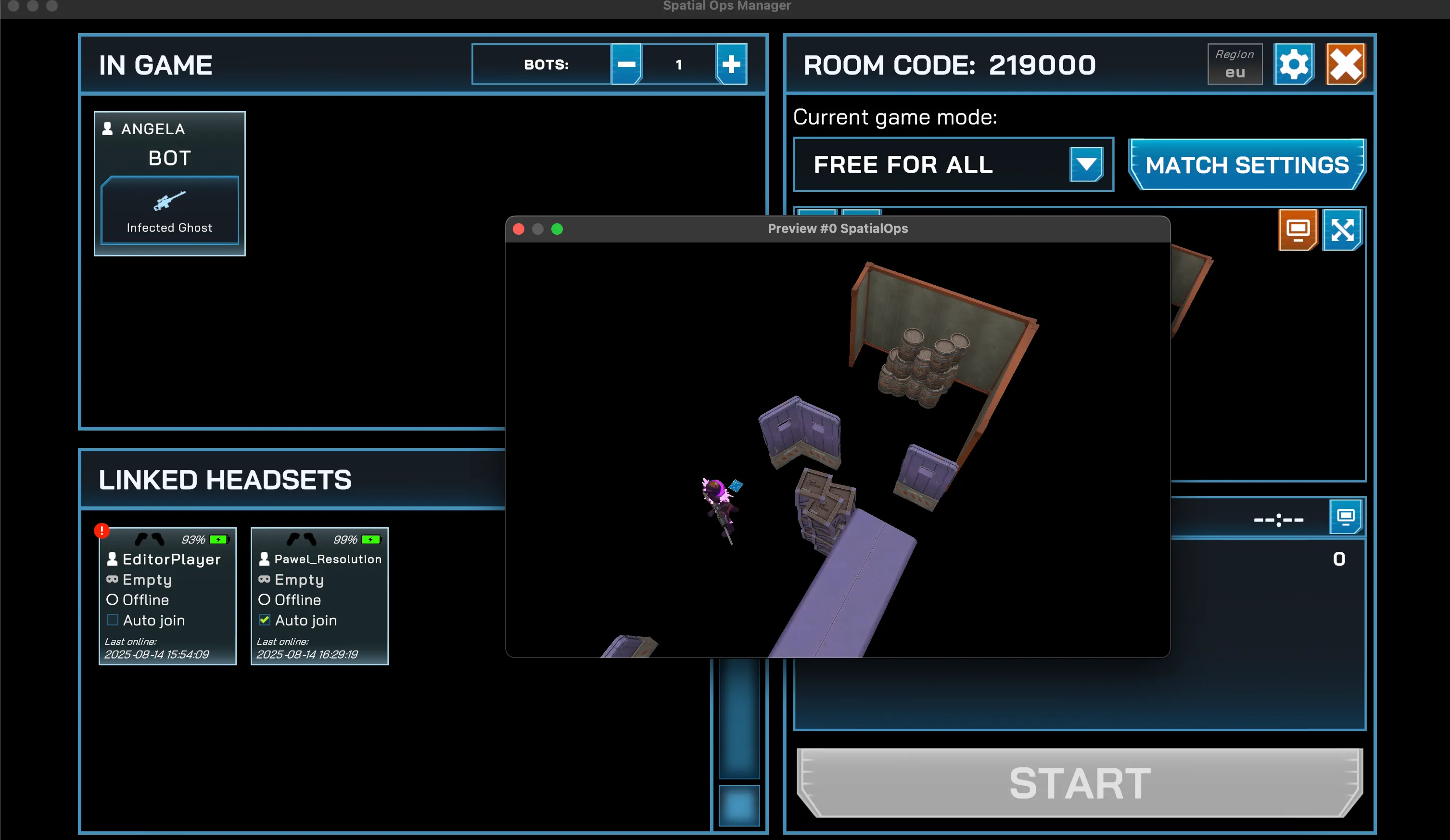
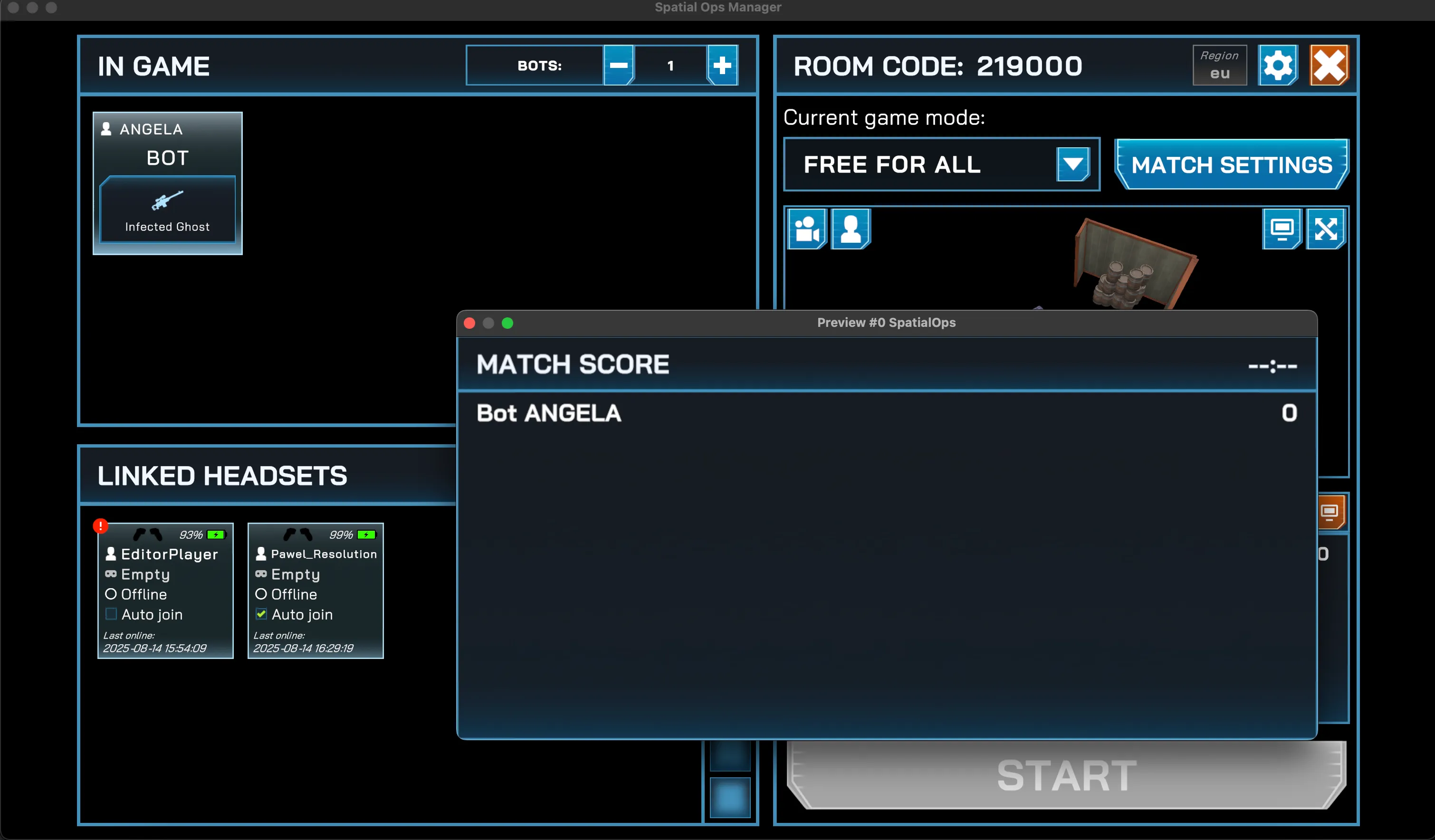
- Open in External Window — detach the preview into a separate window for streaming or a second display.
- Maximize View — expand the preview to full screen within the Manager app.
Side View Camera Controls
Section titled “Side View Camera Controls”
| Action | Mouse | Keyboard |
|---|---|---|
| Rotate Camera | Hold Right Mouse | — |
| Zoom (Z-axis) | Scroll Wheel | — |
| Pan (XY-axis) | Hold Middle Mouse | W, A, S, D |
External Window
Section titled “External Window”The gameplay preview can be popped out into a separate window:
- Useful for operators managing multiple displays.
- Ideal for streaming setups (e.g., OBS, external monitors).
Full Screen Preview
Section titled “Full Screen Preview”Use the maximize button to view the gameplay feed in full screen mode inside the Manager app.