
Adding Custom Images to Maps
Custom Images allow you to bring in banners, promotional materials, or just fun images into your maps.
Navigating through Custom Image settings in Manager app
Section titled “Navigating through Custom Image settings in Manager app”-
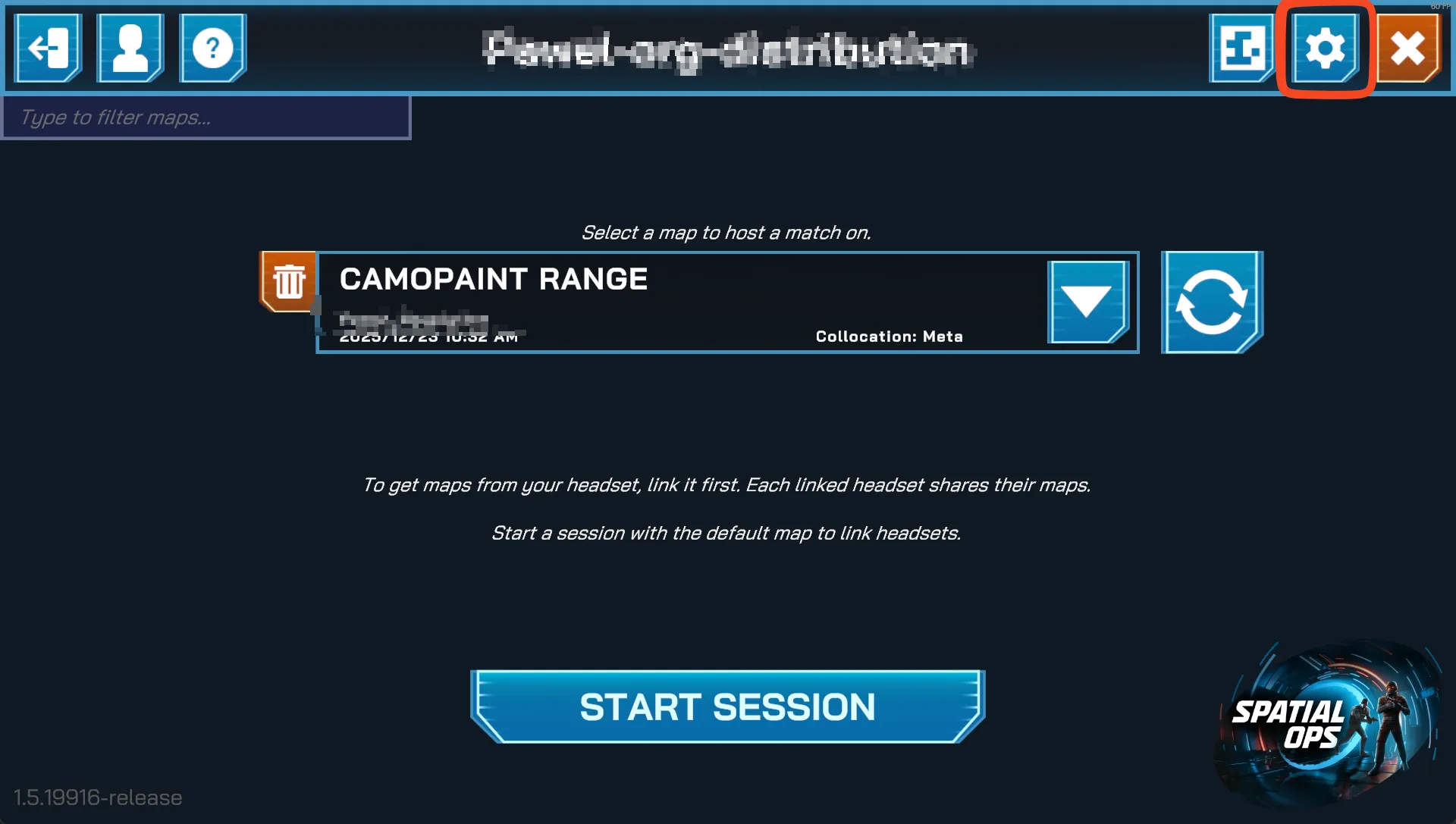
In the Manager app Main Menu, go to app settings
-
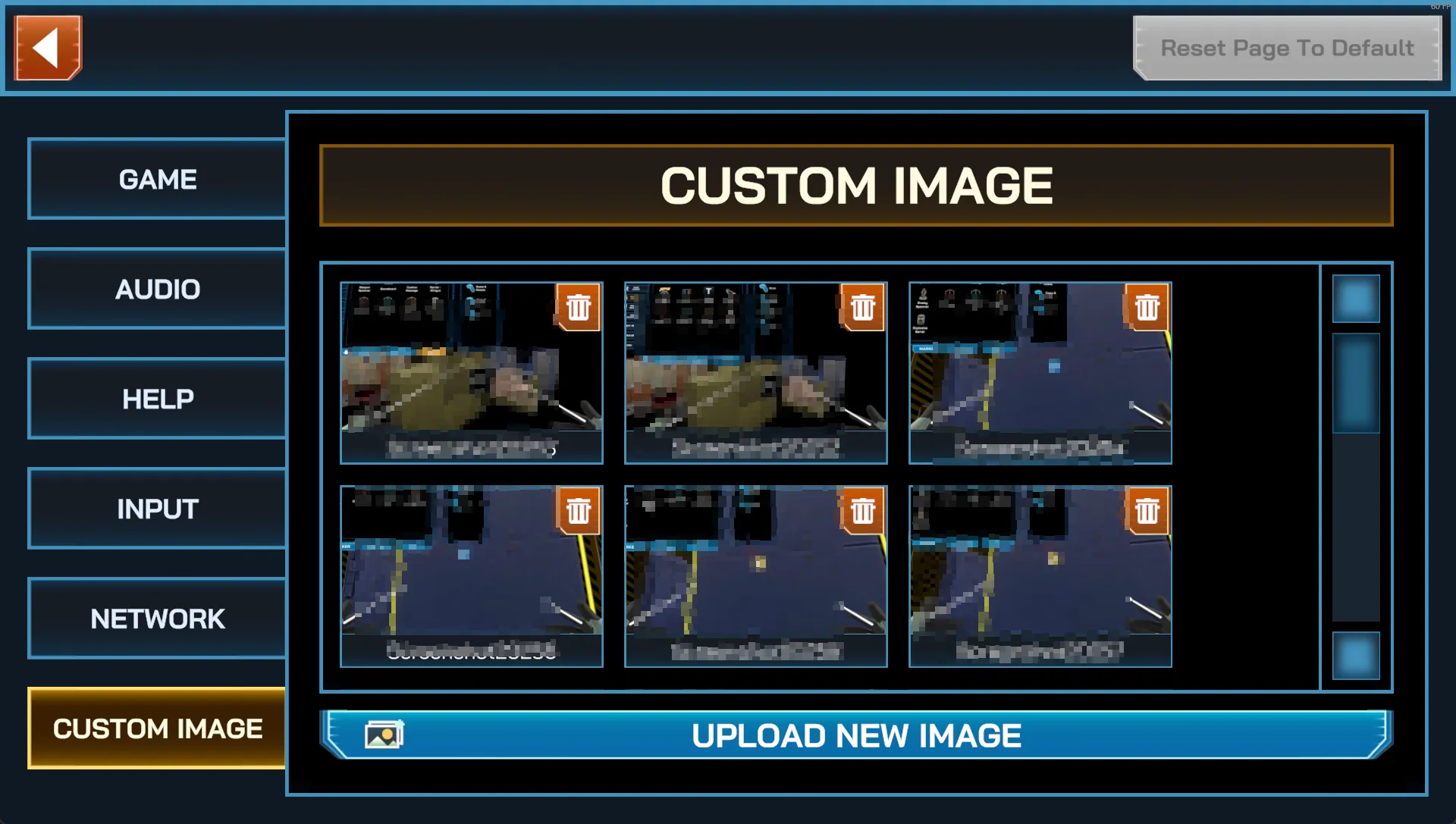
Select the Custom Images tab.
-
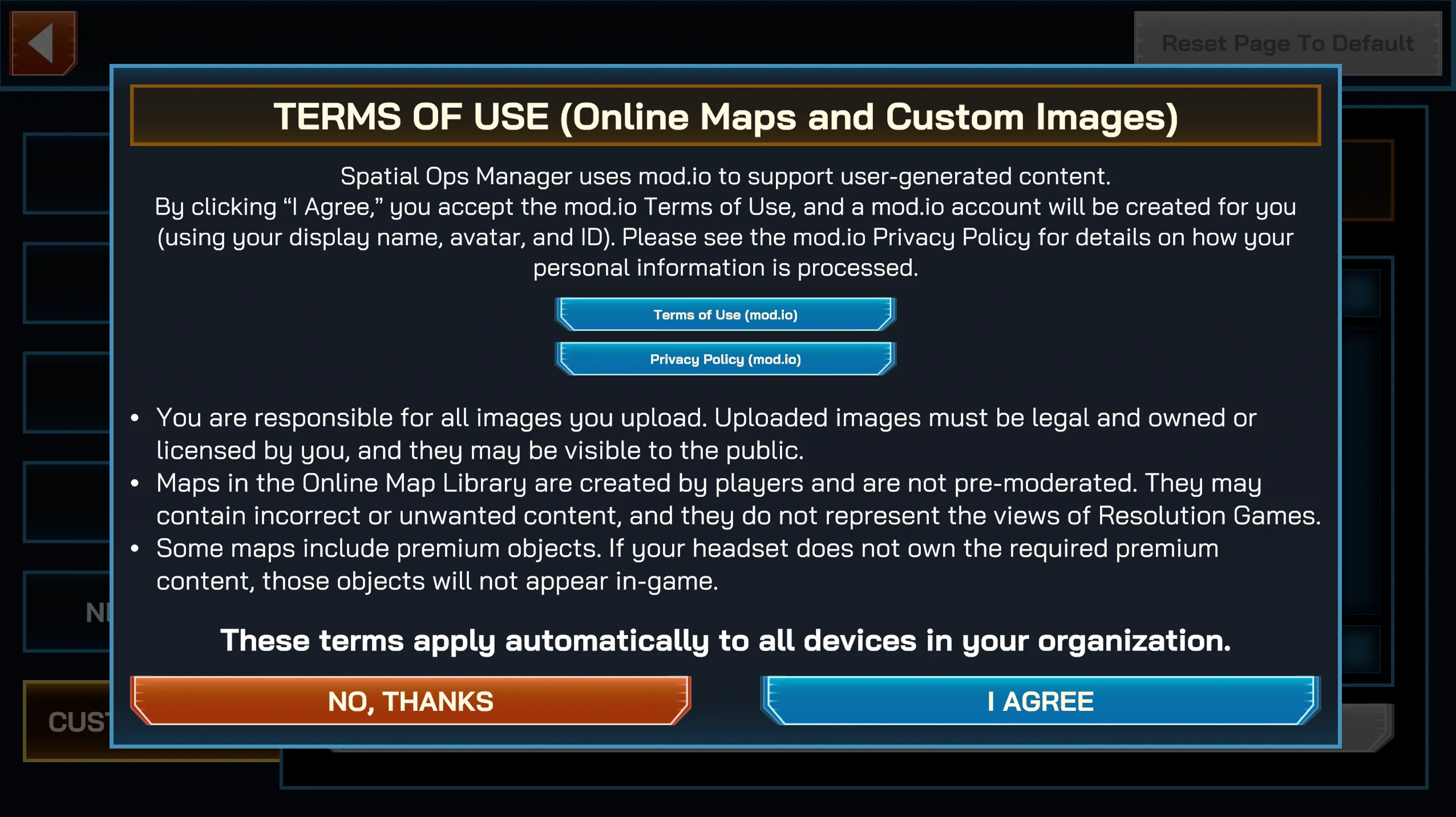
For first-time use, you will be asked to accept the Terms of Use since Custom Images are hosted using mod.io.
-
Steam must be running in the background to authenticate your account with mod.io.
-
From there, you have control to upload new images and to remove already uploaded ones.
Uploading New Custom Images
Section titled “Uploading New Custom Images”-
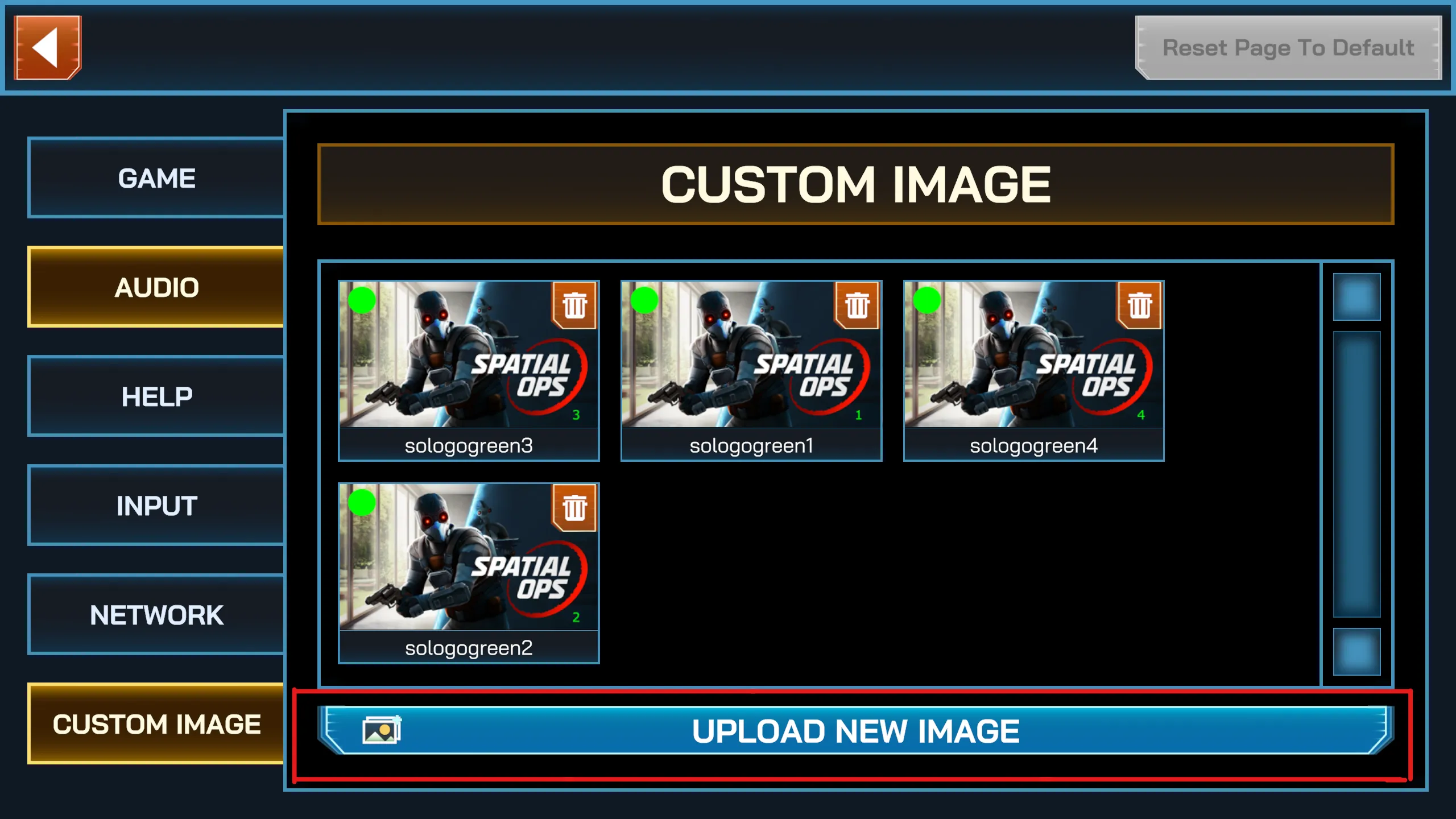
Locate and press the Upload New Image button.
-
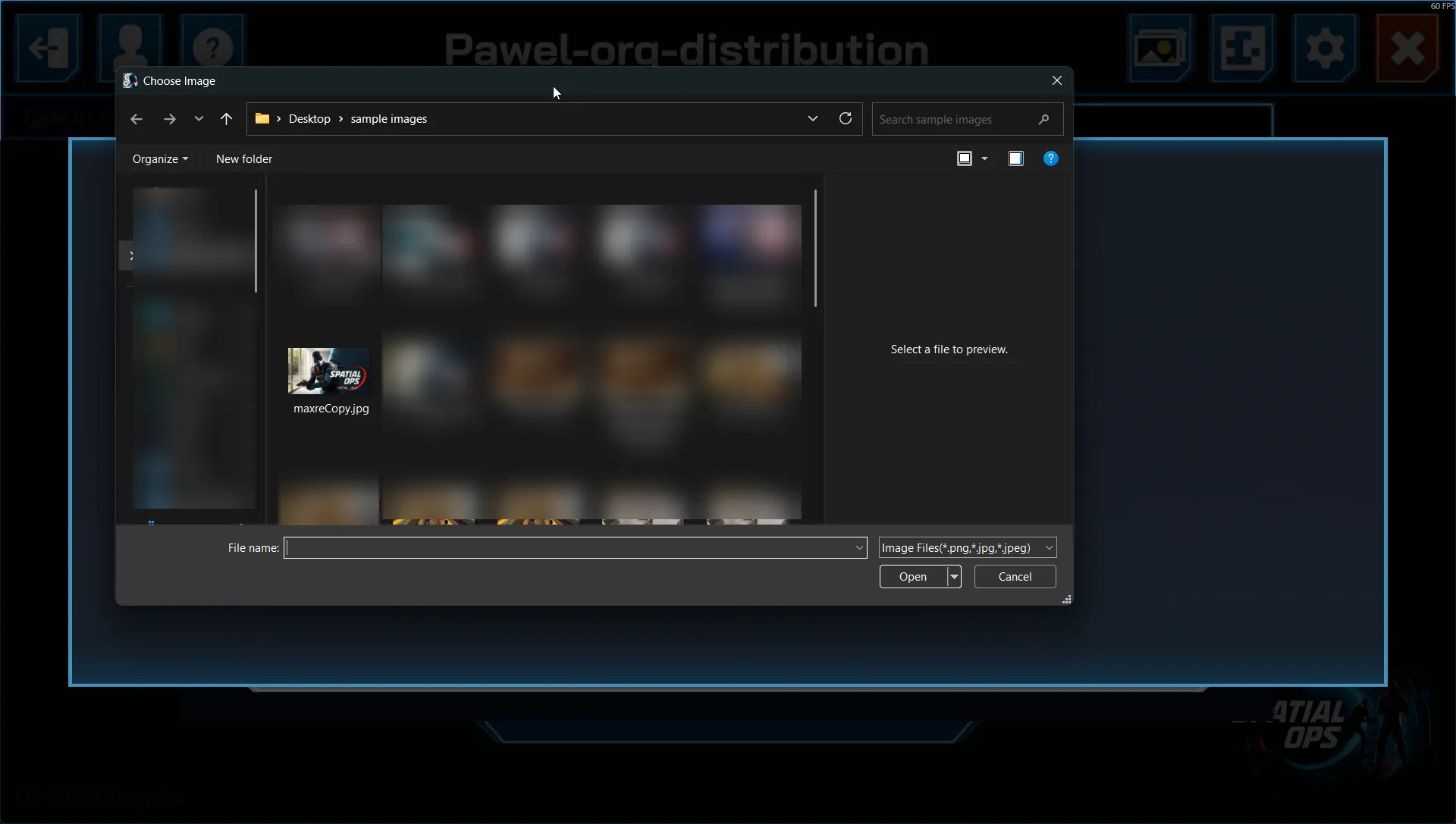
A file dialog will appear. Navigate to the folder containing your image/s and select one or more files you want to upload. Then click Open.
-
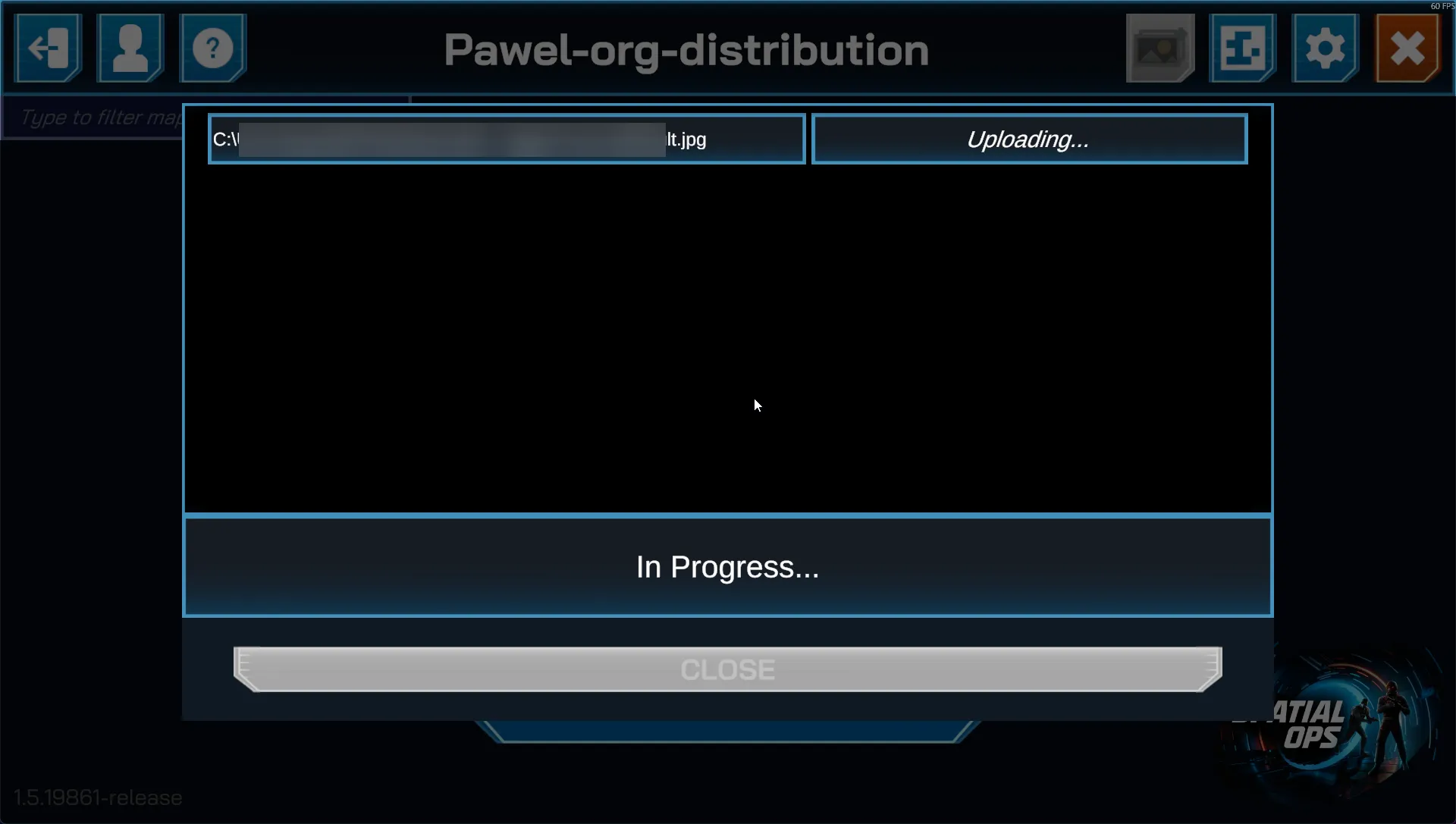
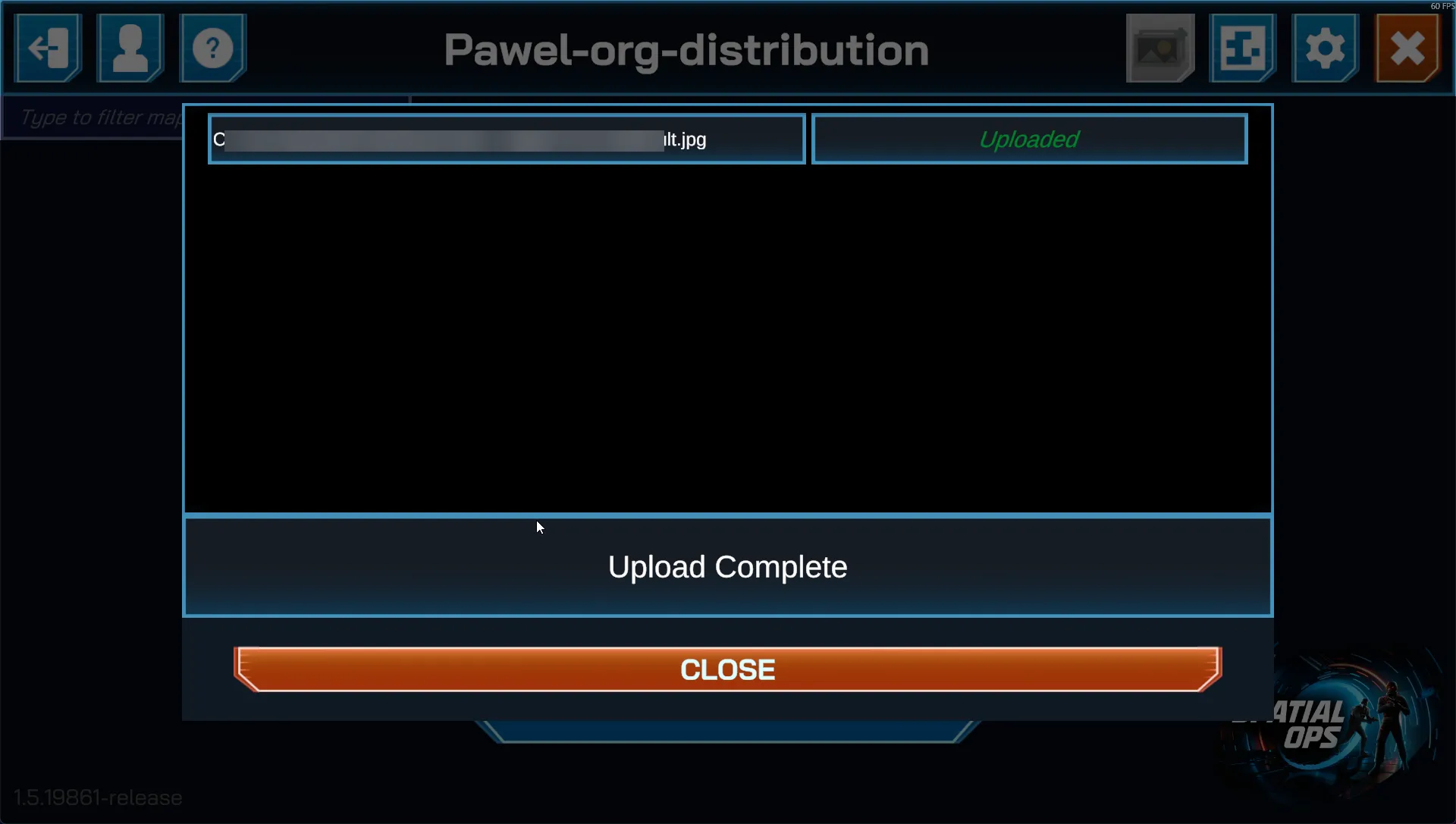
Wait until the upload process finishes and the results are shown. You may review the upload restrictions for any failed results.
Removing Custom Images
Section titled “Removing Custom Images”-
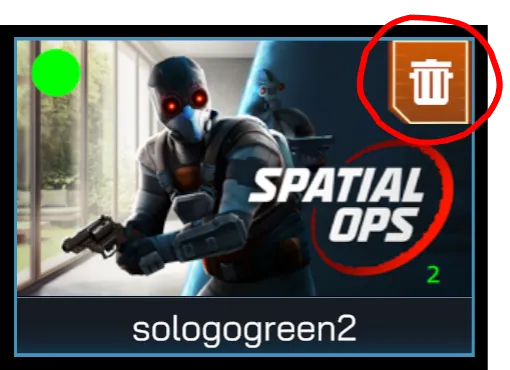
Locate the image you want to remove and press the delete button on the upper right corner of the corresponding image’s preview.
-
Using Custom Images on Headsets
Section titled “Using Custom Images on Headsets”After your image has been uploaded:
-
Make sure the headset is linked to your organization: Add and Link Headsets
-
Put on your headset.
-
Go to the Map Editor and edit the map where you want to use the image.
-
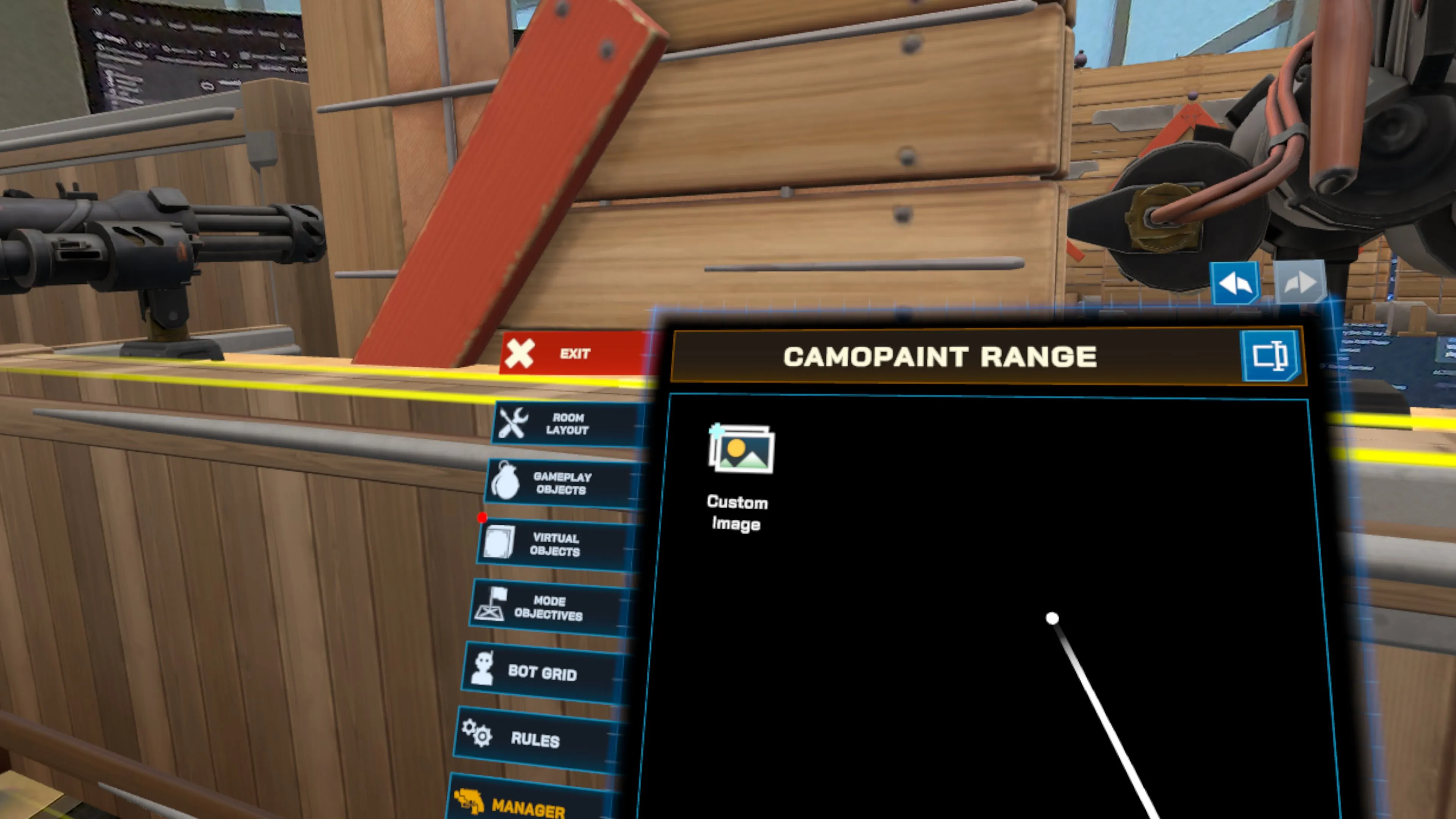
Add a Custom Image object from the Manager tab in the Assets Gallery.
-
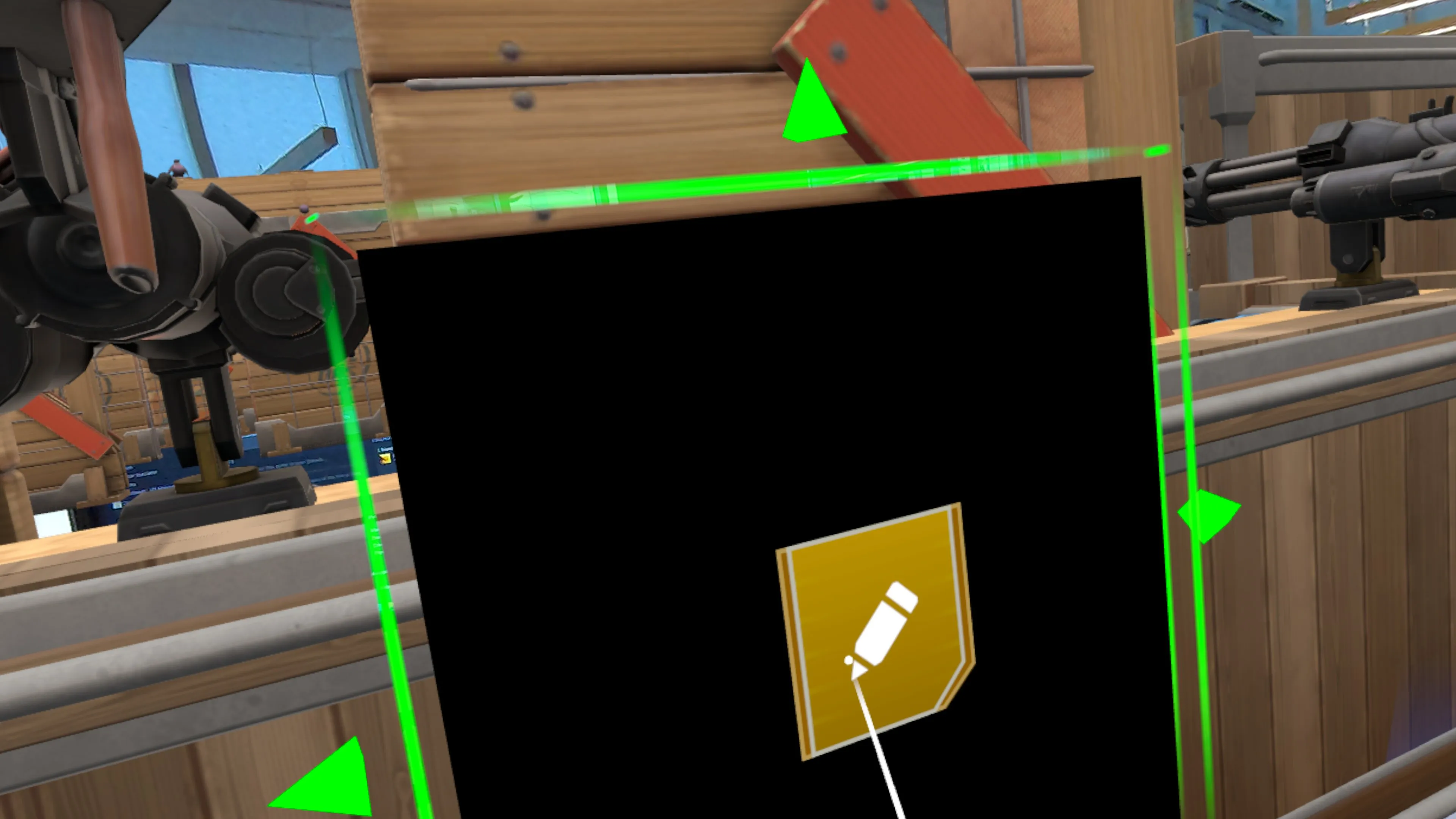
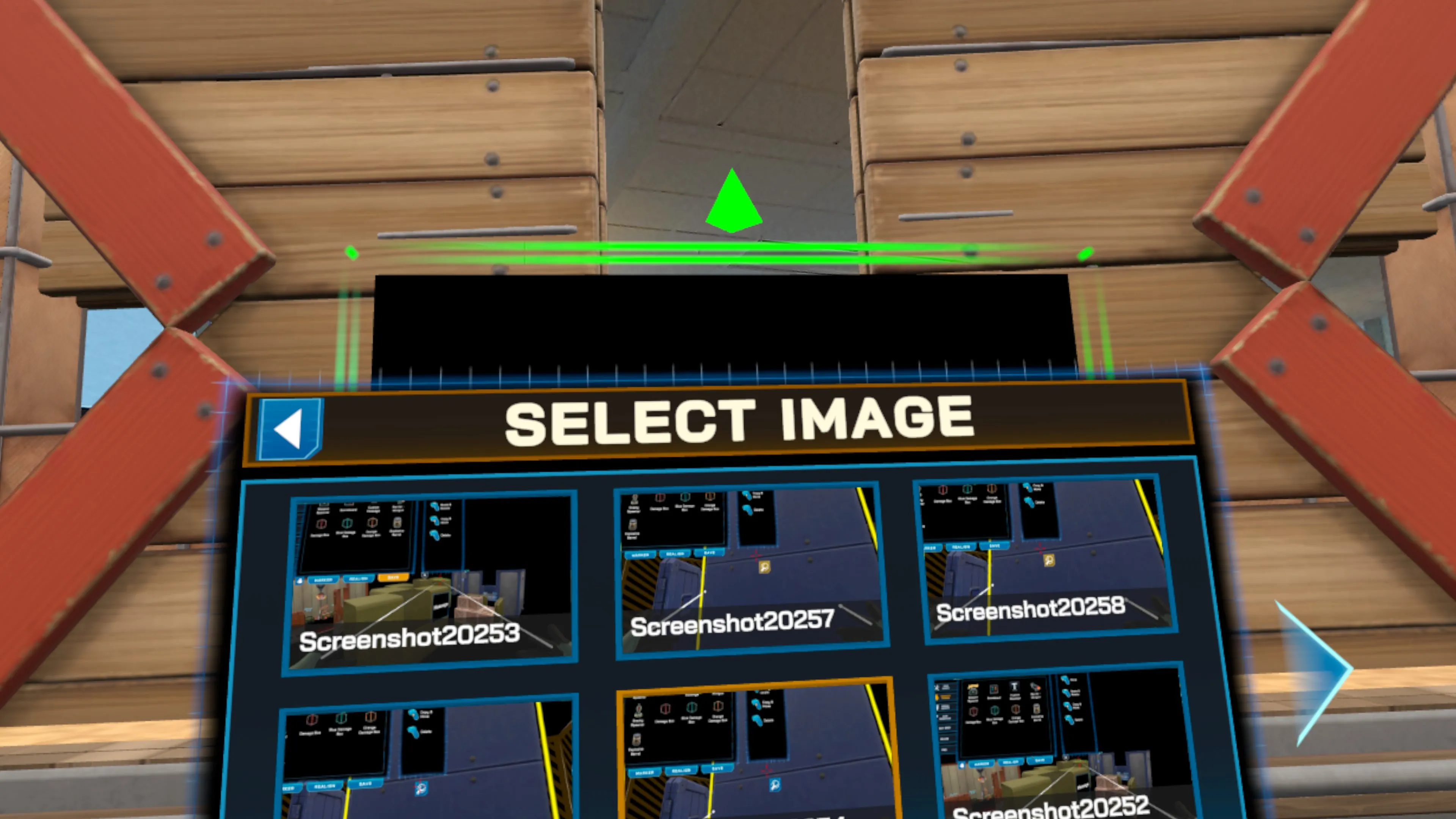
Press the Edit button. Your uploaded images should appear in the gallery.
- It may need some time (approximately 1-2 minutes) for all assets to download.
- If one or more images do not appear in the gallery, try restarting the map editor. If the issue persists, restarting the game may help.
-
You can adjust the image width and height after placing it. Maximum dimensions for the custom image object is 10m x 5m.
Notes & Limitations
Section titled “Notes & Limitations”- If you upload your map to the Online Maps Library, other users may not see your custom images. This is because custom images will only be available to linked headsets within your organization.