
Linked Headset Monitoring
Headset States
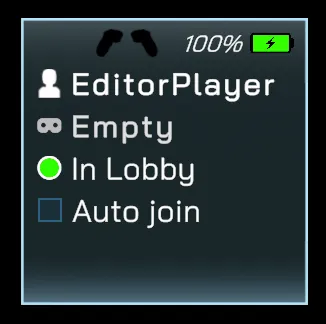
Section titled “Headset States”A headset can be in one of the following states:
| State | Description |
|---|---|
| Booting | Game is starting up. |
| Ready | User can join your session. |
| In Lobby | User is in your or another lobby. |
| Searching Gathering Point | Device is in colocation mode (searching for Spatial Marker or Meta Spatial Anchor). |
| In Match | User is in your match or another hosted match. |
| Campaign | User is playing campaign mode. |
| Map Editor | User is editing or creating a map. |
| Joining Game | Device is in the process of joining a game. |
| Creating Game | Device is in the process of hosting a game. |
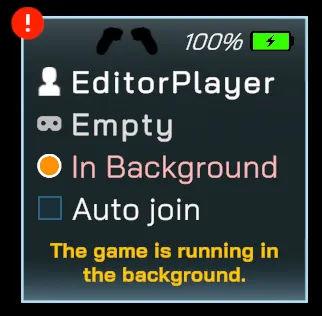
| In Background | Game is running in the background (e.g., Meta Dashboard is open). |
In Game View
Section titled “In Game View”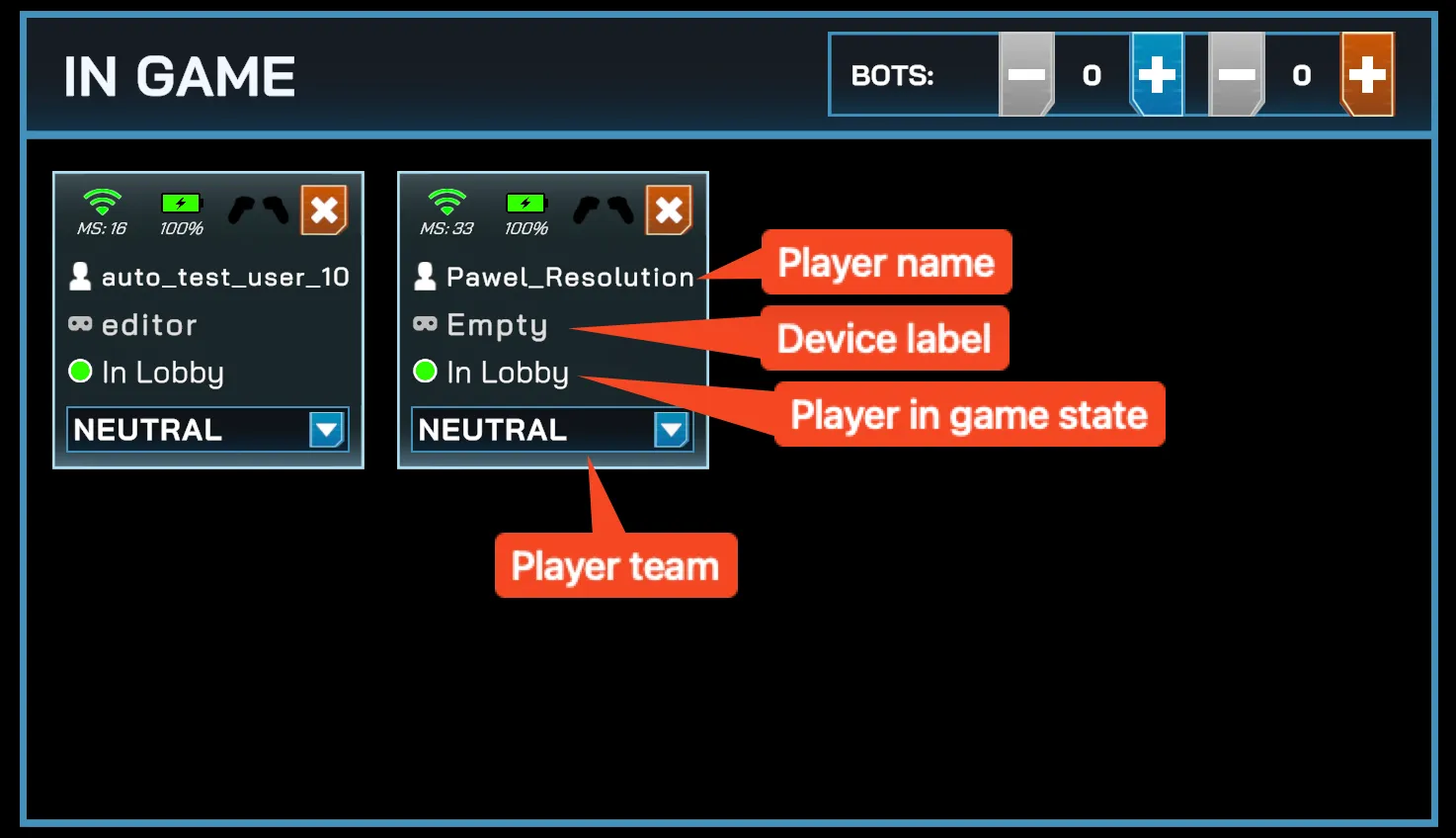
Active Player
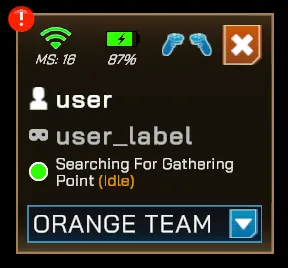
Spectator
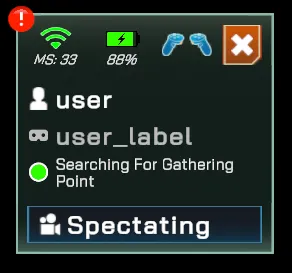
Information Shown
Section titled “Information Shown”- Connection quality (latency / Wi-Fi signal)
- Headset battery level
- Controller connectivity
- Kick option — remove the player from the current session
- Team assignment — change the player’s team (Neutral, Team Blue, Team Orange, etc.)
- Spectator Indicator — displays the player’s spectator status. Clicking this button disables Spectator Mode and returns the player to active play.
Detailed informations popup
Section titled “Detailed informations popup”When you click a headset panel, you’ll see additional details:
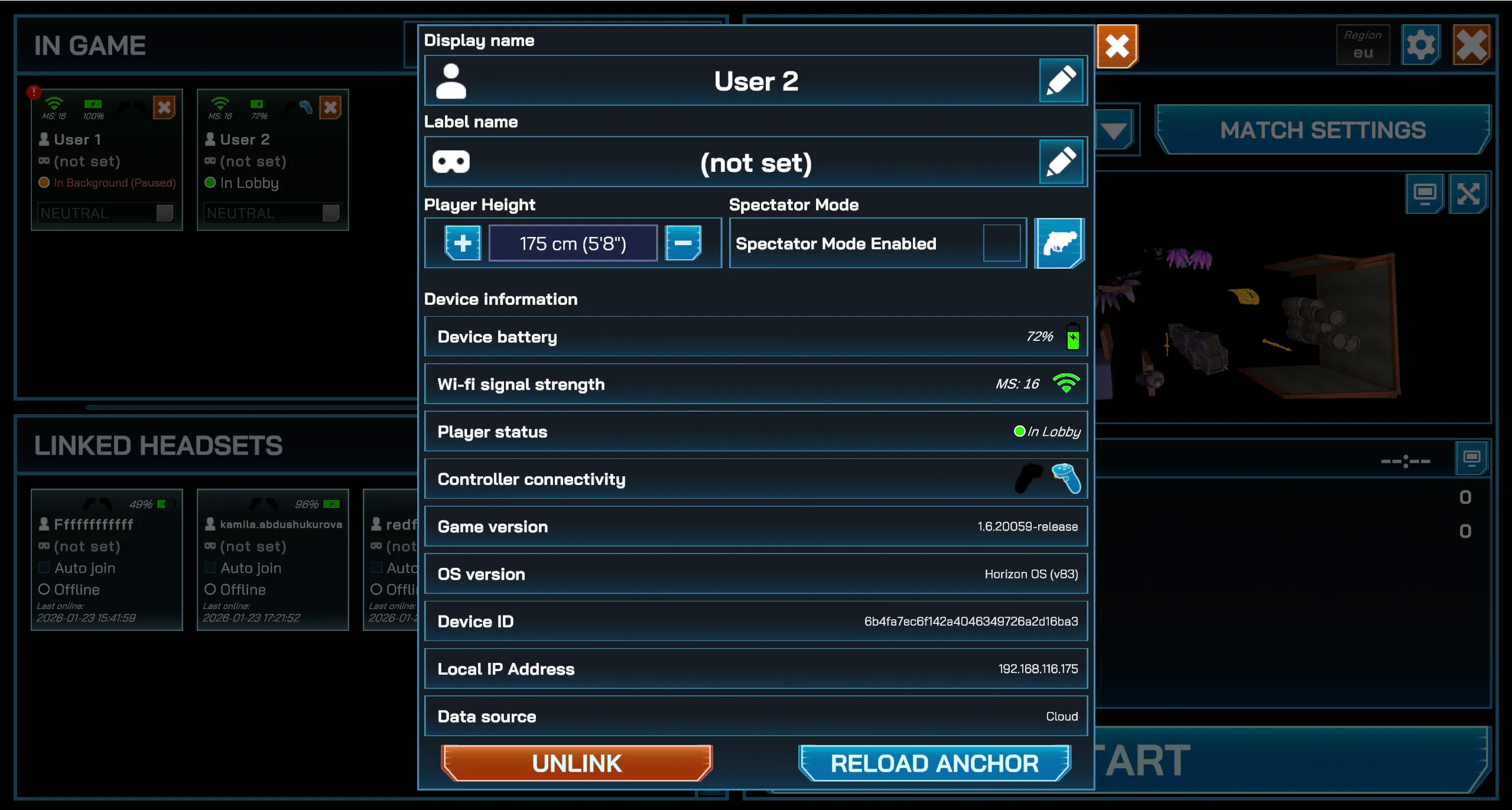
Editable values
Section titled “Editable values”- Player name
- Device label
- Player height
- Spectator mode — enable to make the player watch the match as a spectator rather than participating as an active player.
- Player Holster Loadout - set weapons equipped on the player’s holders. See more information on Setting Up Individual Player Holsters
Actionable buttons
Section titled “Actionable buttons”- UNLINK - removes the user from your organization (maps won’t be synced anymore).
- RELOAD ANCHOR - forces the device into colocation mode (Spatial marker or Meta Spatial Anchor).
Linked Headsets View
Section titled “Linked Headsets View”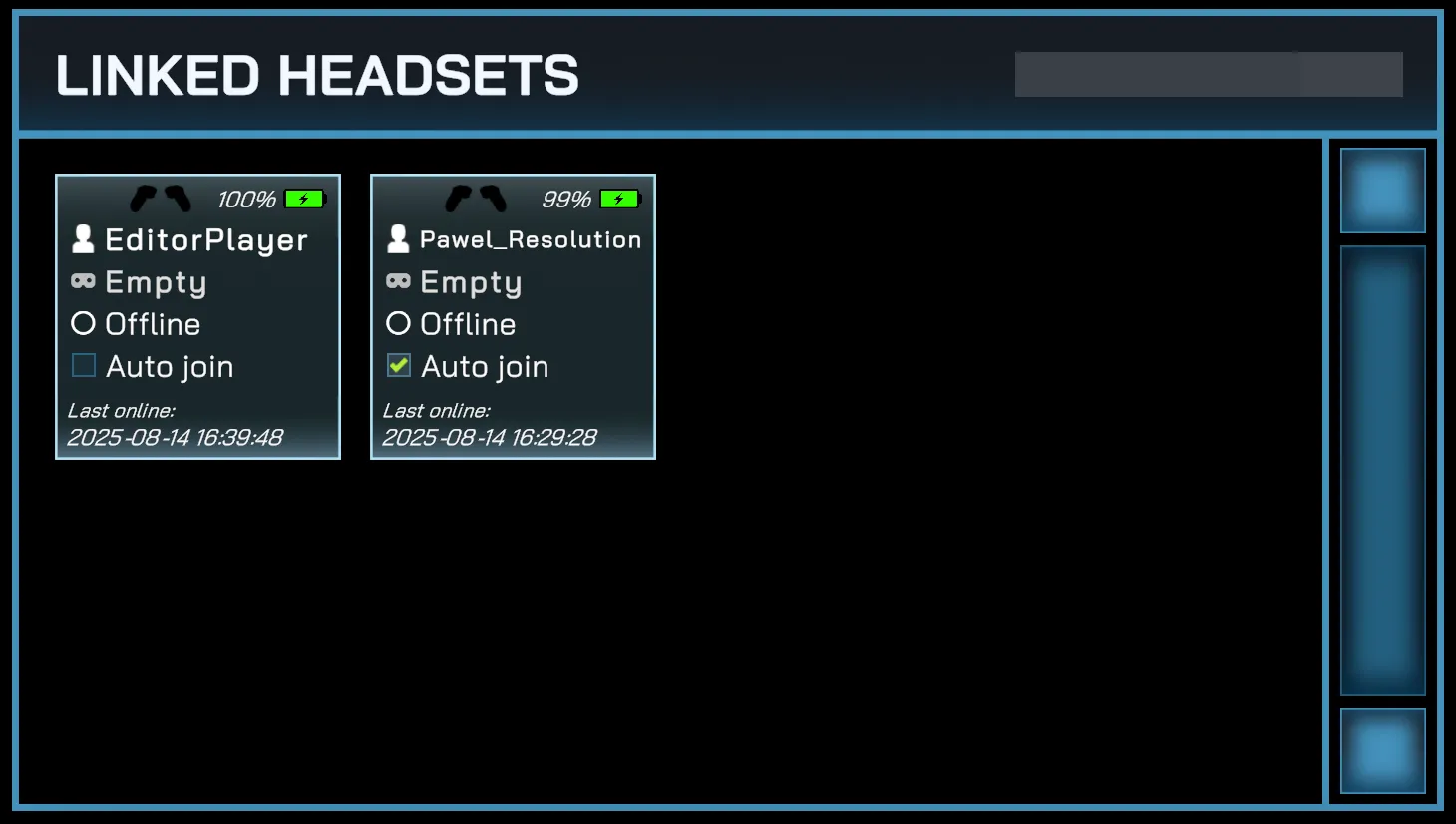
- When enabled, the headset will automatically join your sessions when active.
- This is automatically enabled for users who participated in your most recent match.
Detailed informations popup
Section titled “Detailed informations popup”When you click a headset panel, you’ll see additional details:
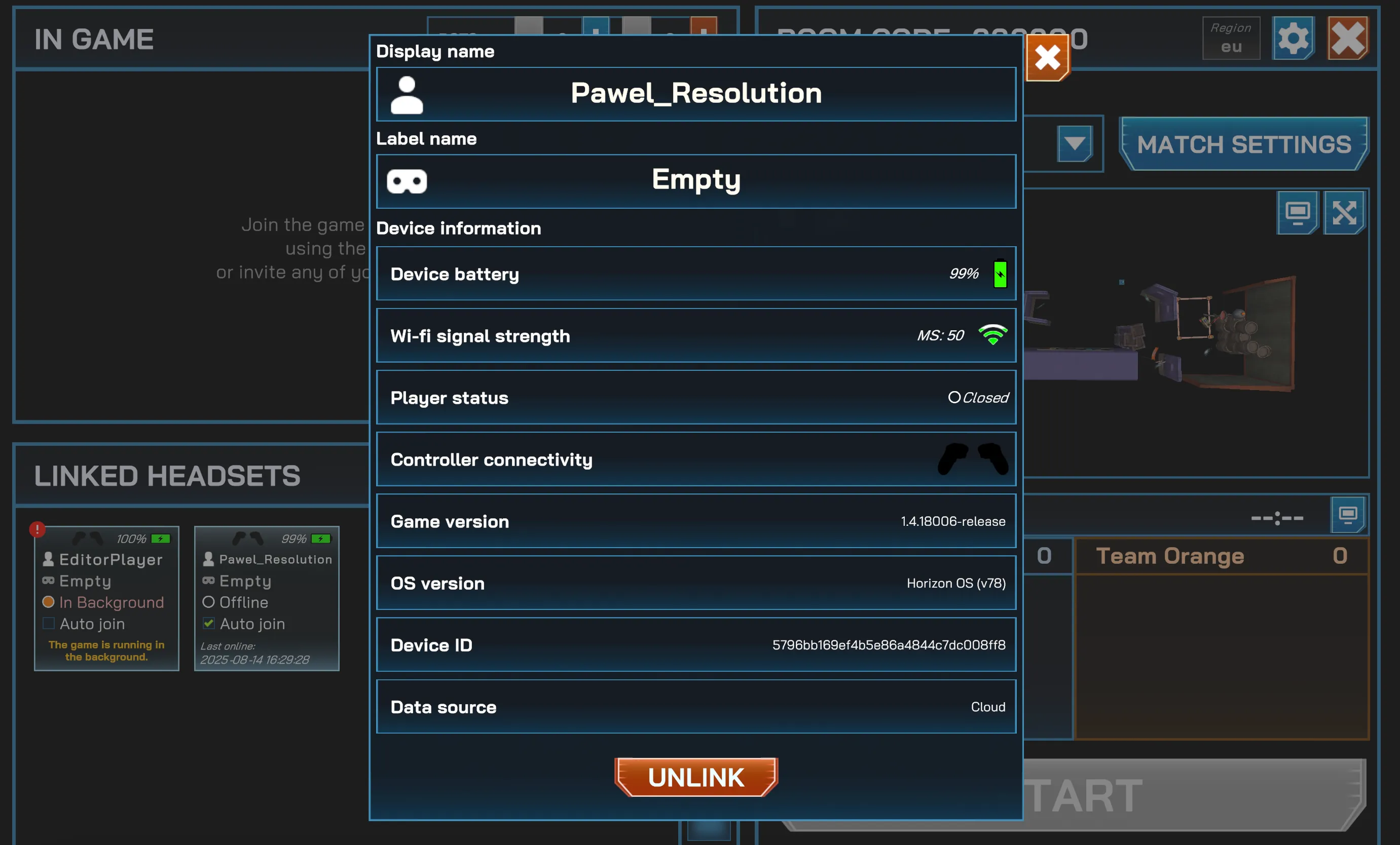
Panel states
Section titled “Panel states”-
Game running (joinable) — the device is running the game and can join your Manager session immediately.
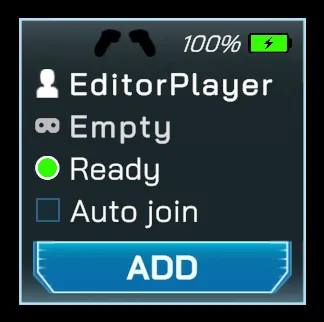
-
In Background — the game is running but the Meta Dashboard is open; bring the app to the foreground to join.
-
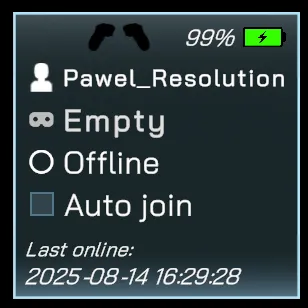
Offline / Not running — the headset is turned off or the game is not running.
-
In another session — the user is currently playing in a different hosted session.