

Manual Maps Upload (Side-Loading)
Instructions
Section titled “Instructions”-
Close the Spatial Ops game on your headset.
-
Connect the headset to your PC with a USB cable.
-
Download and unzip the Upload Tool.
-
Copy your map files into the
Mapsfolder inside the tool directory:-
Windows:
toolPath/Maps/...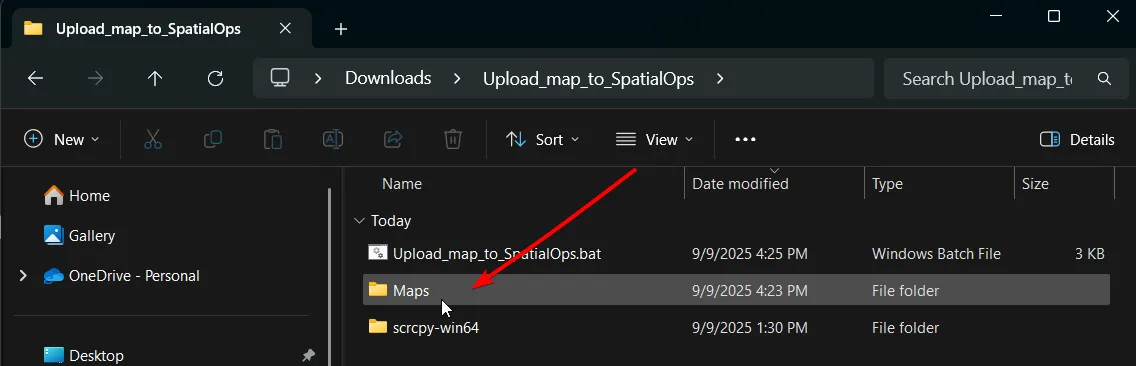
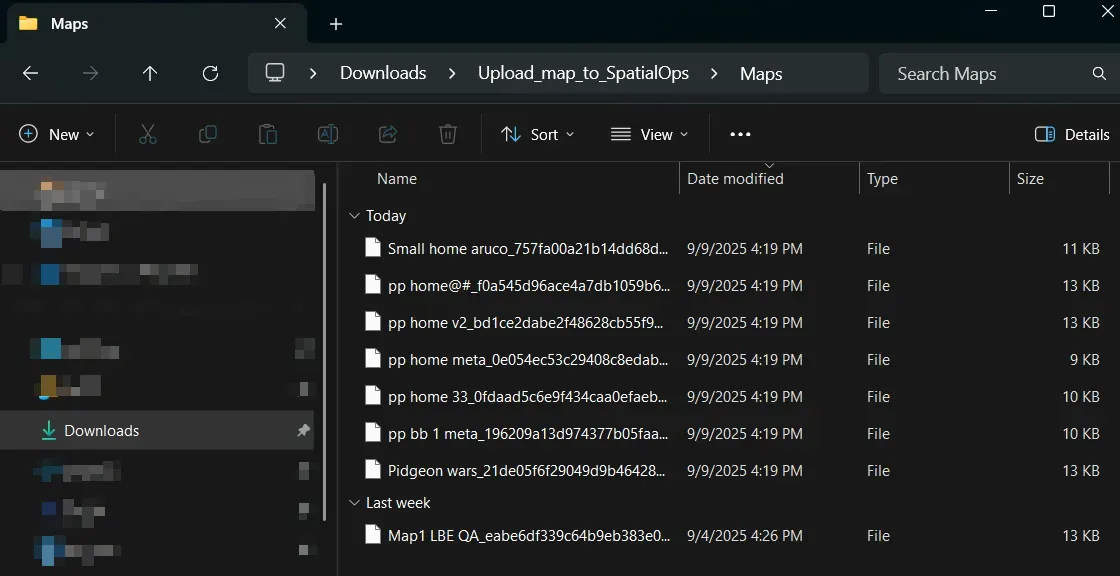
-
macOS:
toolPath/Maps/...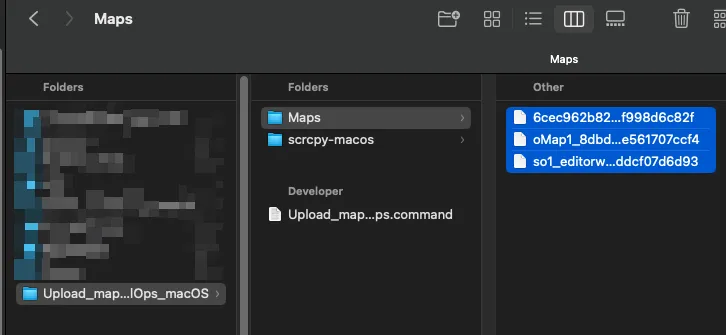
-
-
Run the included script:
- Windows:
Upload_maps_to_SpatialOps.bat - macOS:
Upload_maps_to_SpatialOps.command
- Windows:
-
Look for a Success message:
-
Windows: shows confirmation in Command Prompt.
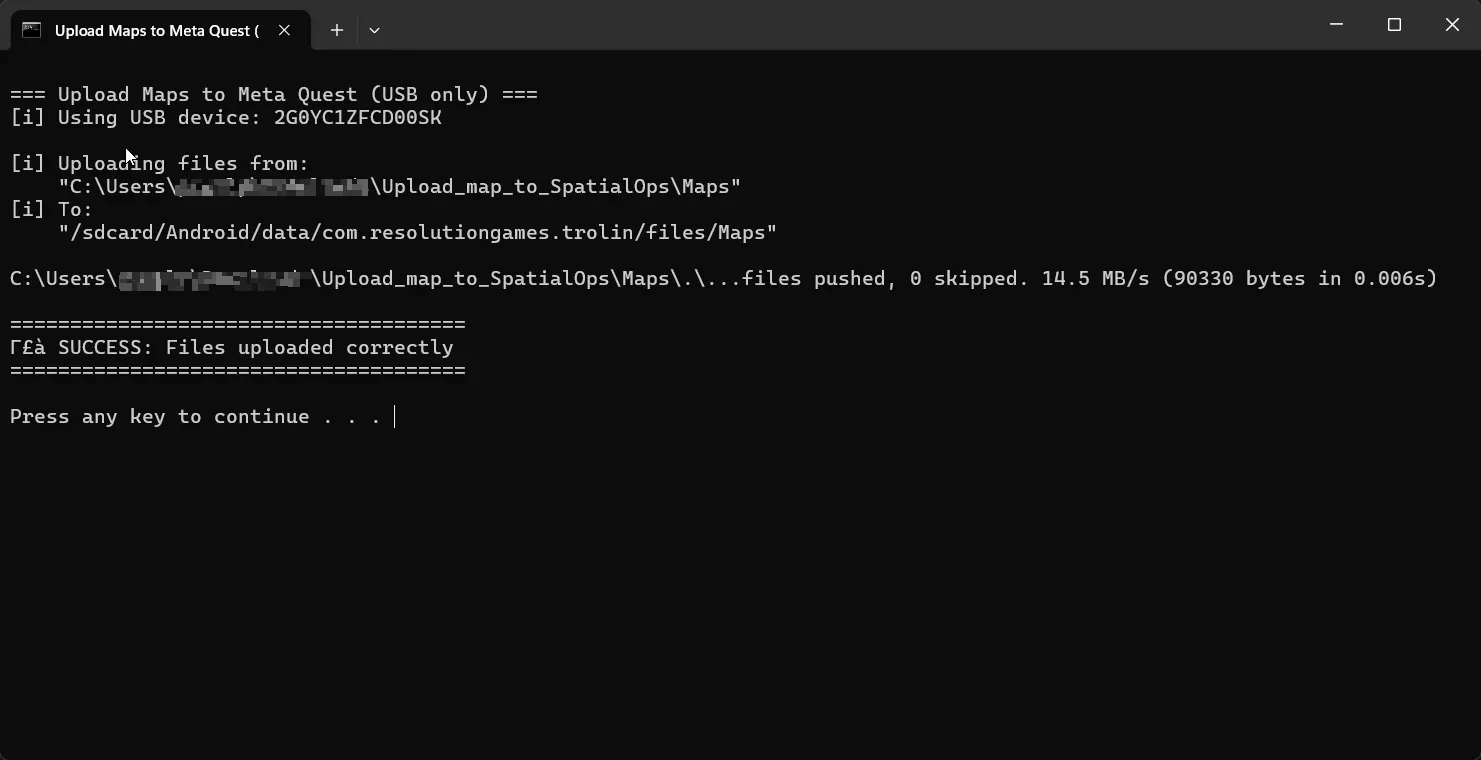
-
macOS: shows confirmation in Terminal.
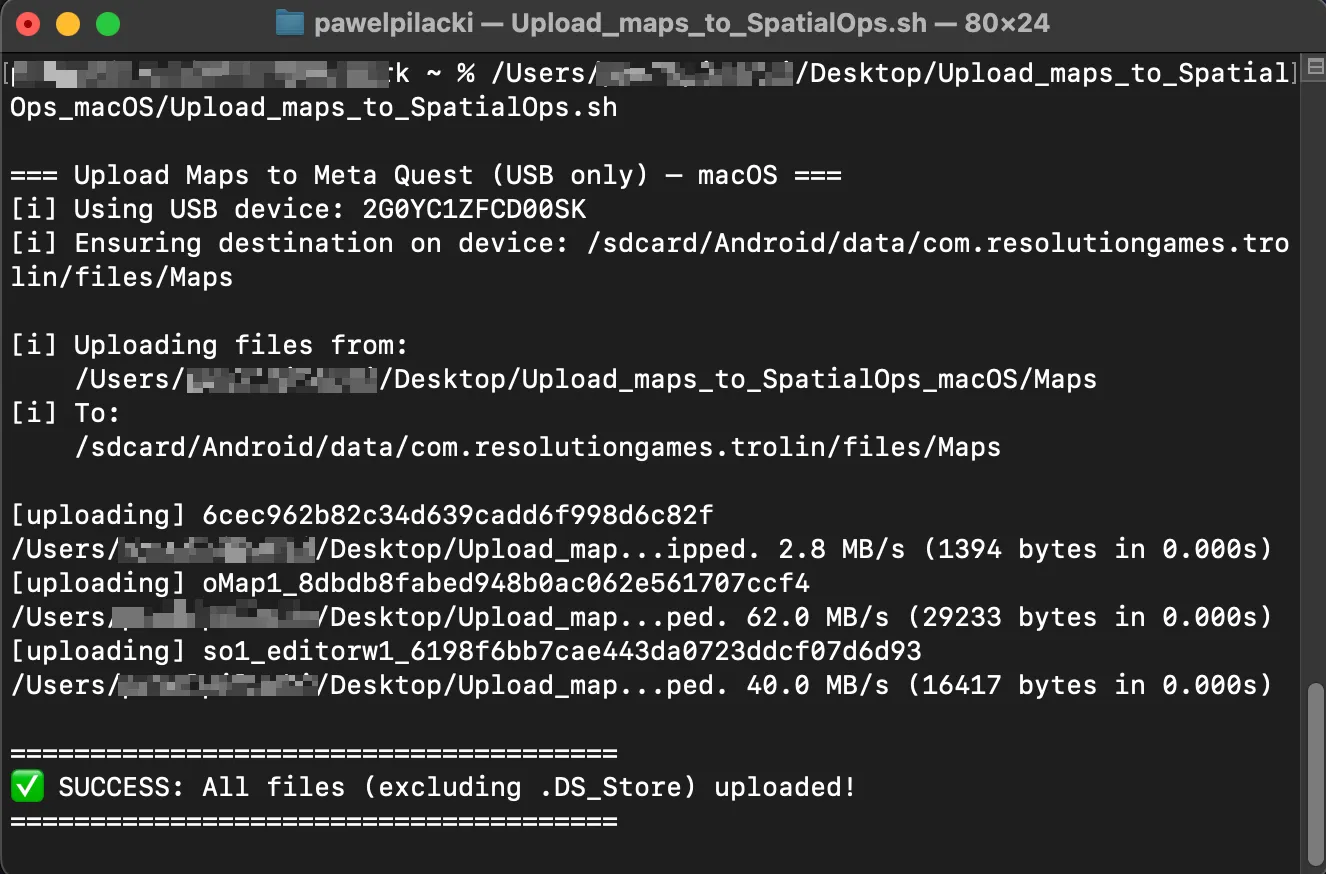
-
-
Start the game on your headset — the new maps will appear.
-
Edit the map directly in-game:
- Align it to your play space.
- Make modifications as desired.
-
Save the map.
-
Once saved, the new map will sync and appear in the Manager app.