

ADB Wireless Connection
This section covers connecting your Meta Quest headsets to your computer over WiFi — enabling capabilities such as streaming and basic remote control functions.
Finding your headsets’ IP Address
Section titled “Finding your headsets’ IP Address”In the Manager app, once you start a session, locate the desired headset, either in the In Game panel or in the Linked Headsets panel.
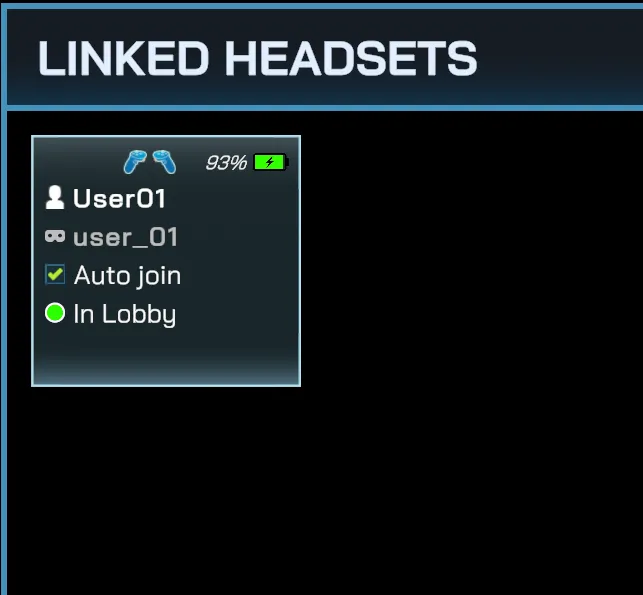
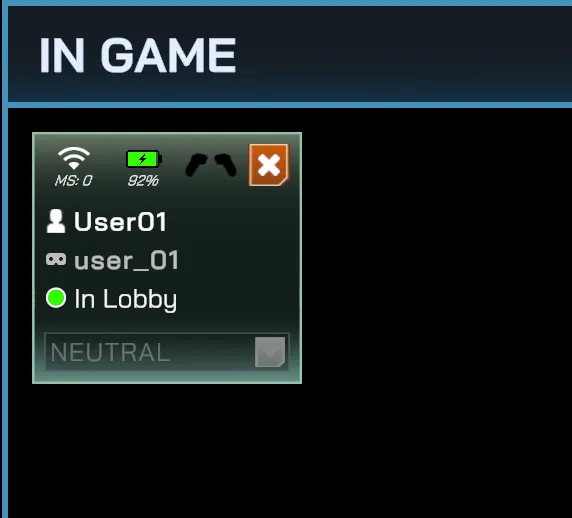
The Local IP address is displayed in the device’s information panel.
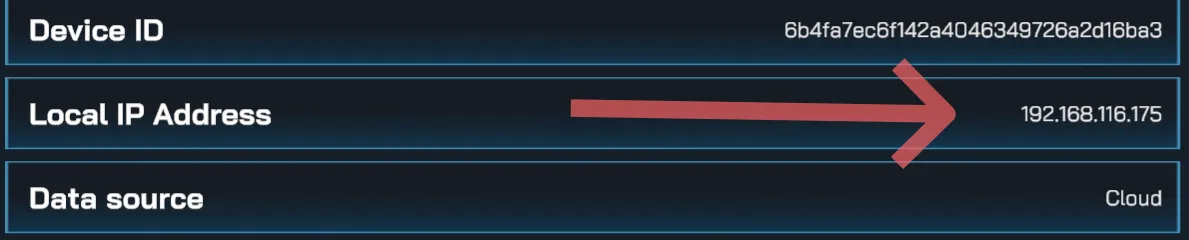
Alternatively, the IP address can be found directly on the headset. Navigate to Settings > WiFi > scroll down to find the IP Address.
Enabling Wireless ADB
Section titled “Enabling Wireless ADB”- Connect your Meta Quest headset to your computer via USB-C.
- On the headset, when prompted to “Allow USB debugging”, select Always allow.
- On your computer, open a terminal or command prompt and run:
adb tcpip 5555 - Disconnect the USB connection from your headset.
Troubleshooting
Section titled “Troubleshooting”- If you get a cannot connect error, restart the ADB server by running the following commands:
adb kill-serveradb tcpip 5555
- If prompted for permission on the headset again, select Always allow.