
Create an Account and Authenticate
To use Spatial Ops Manager, your venue must have an organization account. The owner creates this account and can then invite additional users (employees) to join.
Access the Manager portal at: https://manager.spatialops.com
Create an Organization Owner Account
Section titled “Create an Organization Owner Account”-
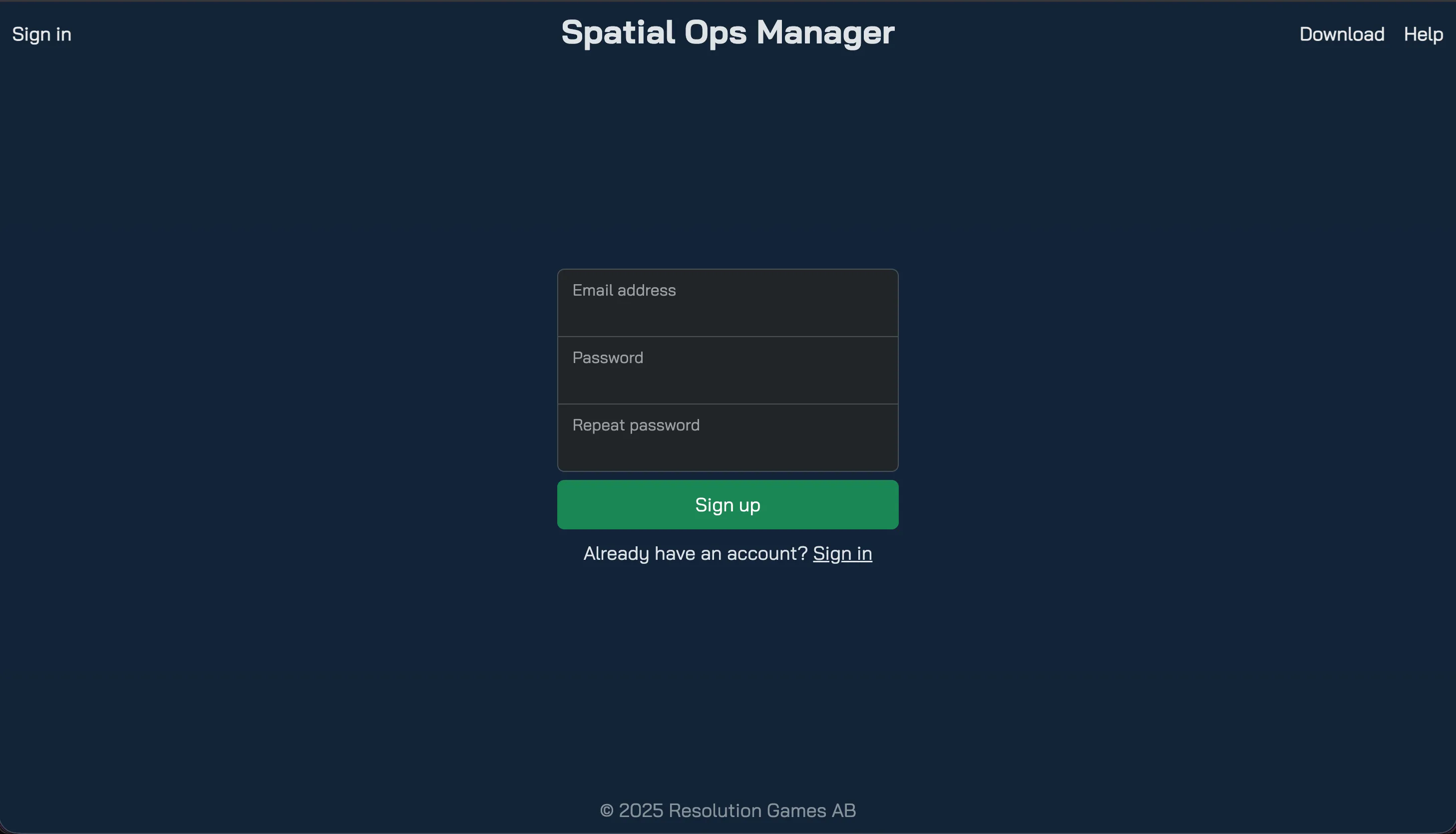
Go to the Manager portal and register your owner account.

-
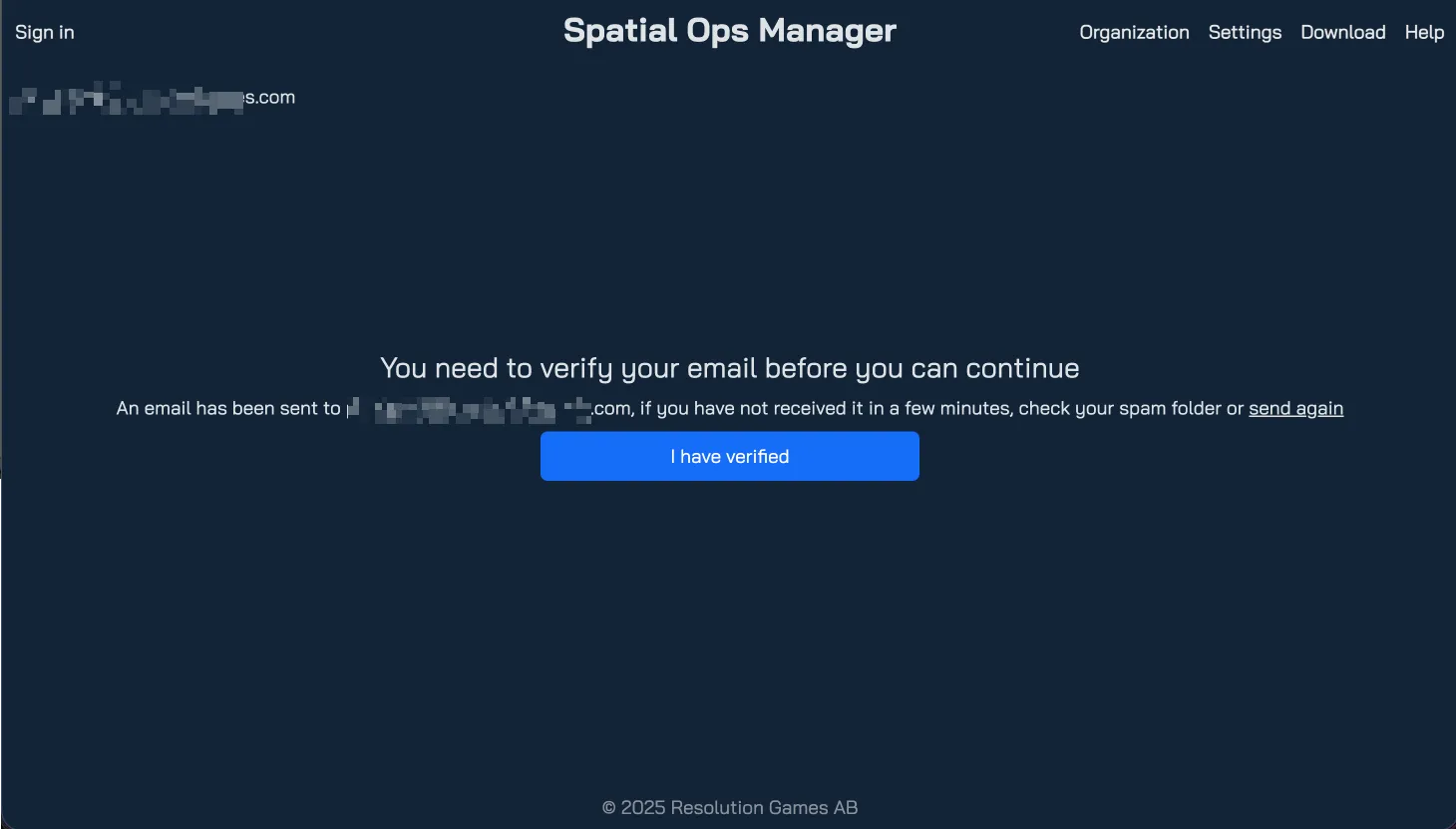
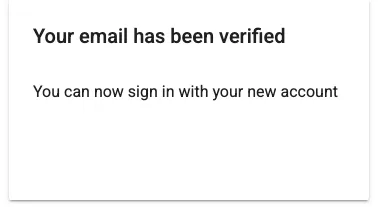
Verify your email address by following the link sent to your inbox.
-
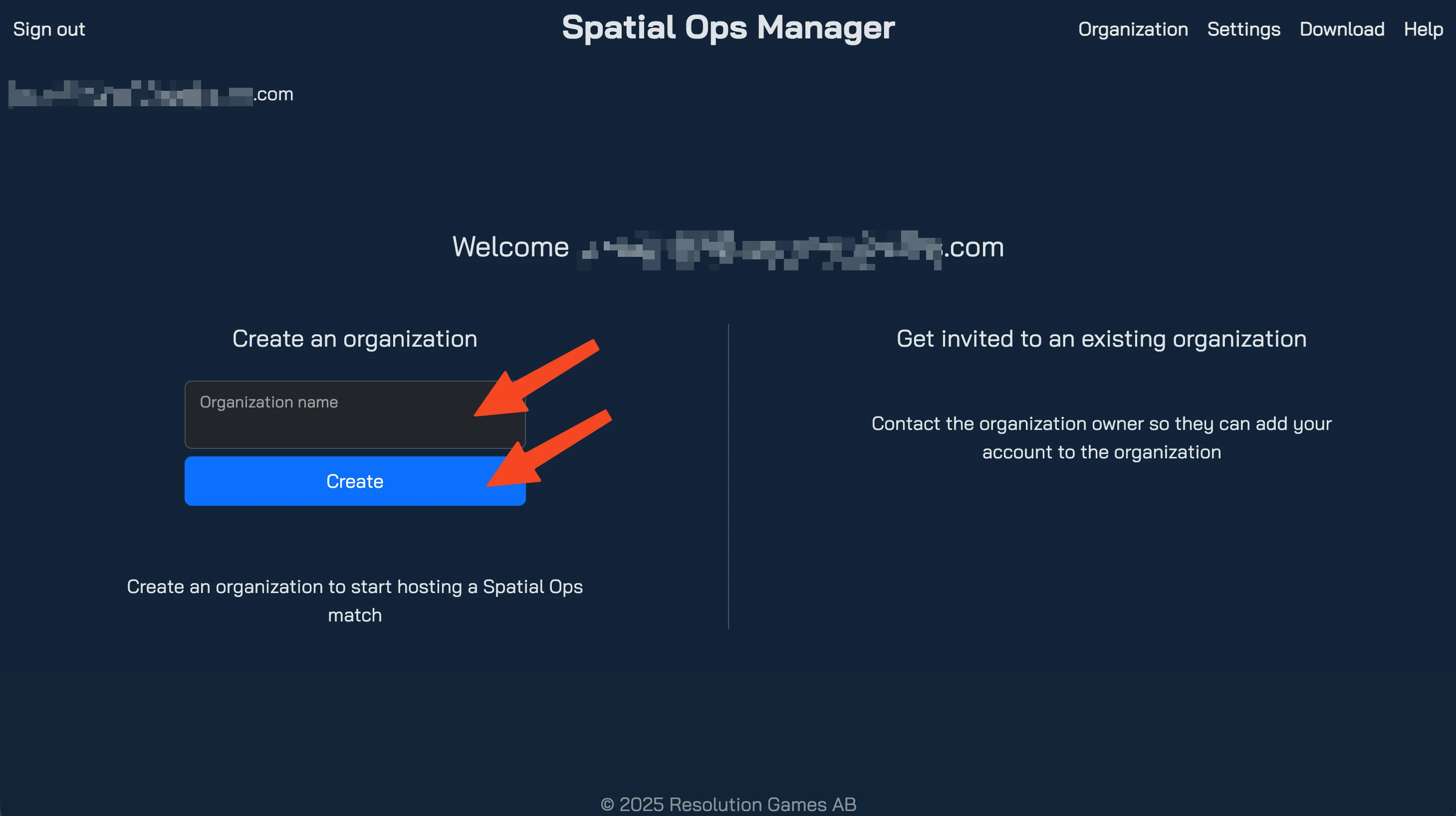
Create your organization by entering a name and clicking Create.
-
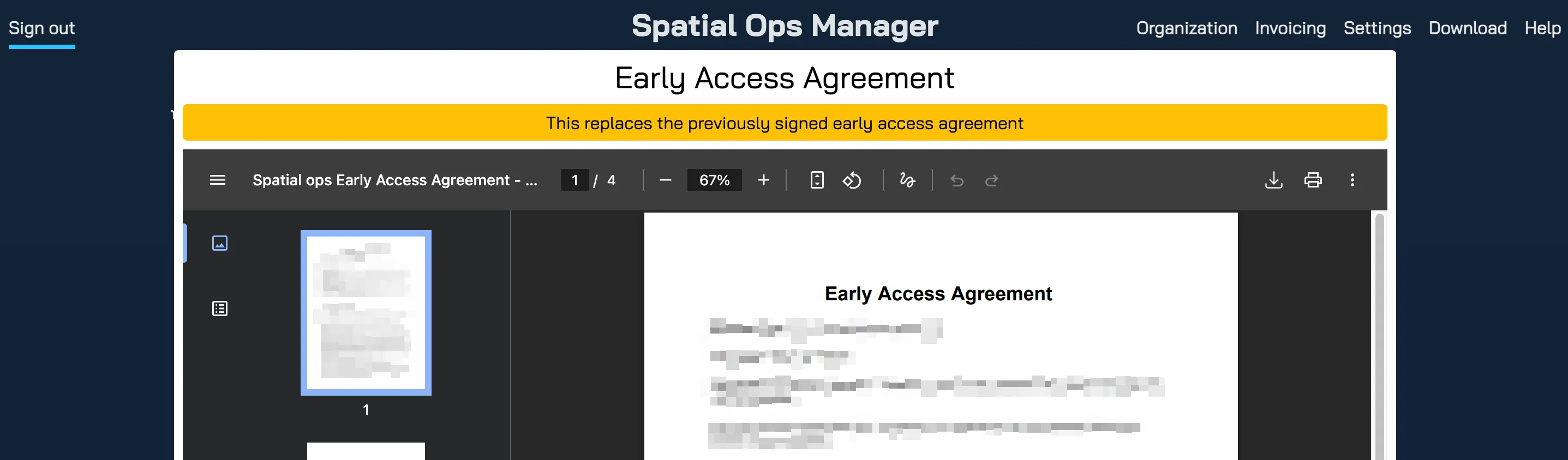
Review and accept the Access Agreement.

-
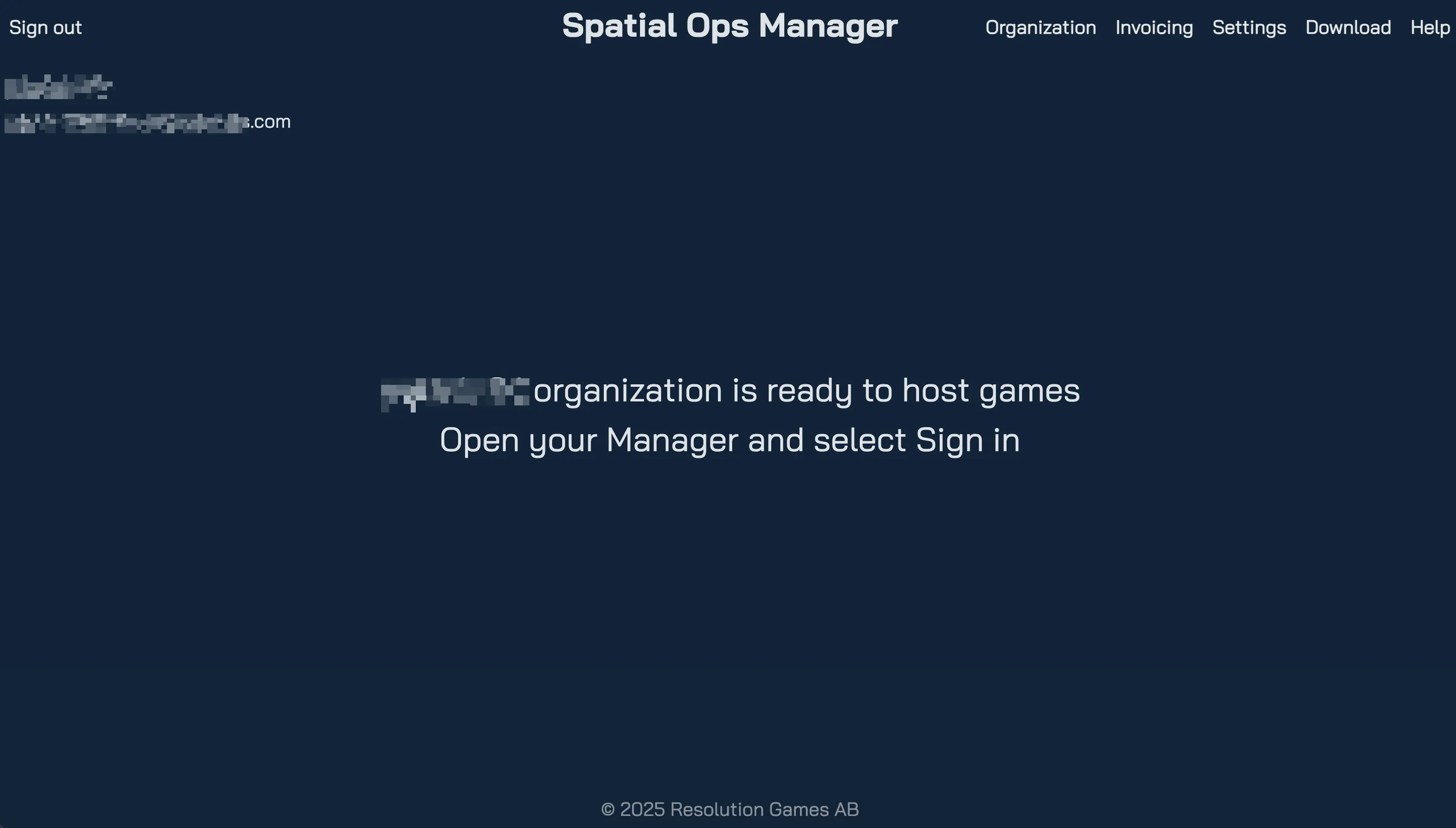
Once completed, your organization is created and you are ready to use Spatial Ops Manager.
Add Additional Users to Your Organization
Section titled “Add Additional Users to Your Organization”-
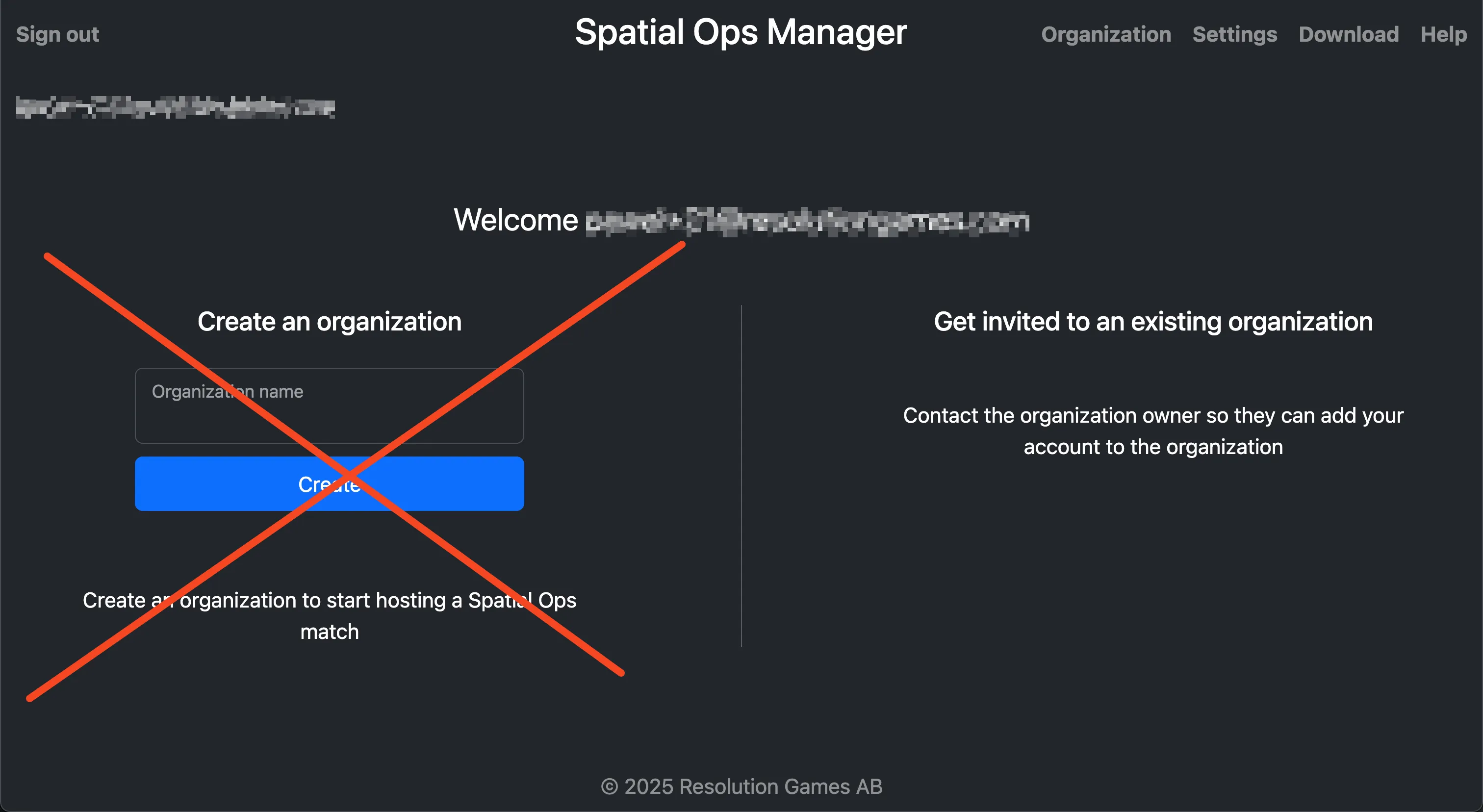
Ask the additional user (e.g. your employee) to go to the Manager portal and create a user account.
-
They should not create a new organization.
-
Collect the email address associated with their account.
-
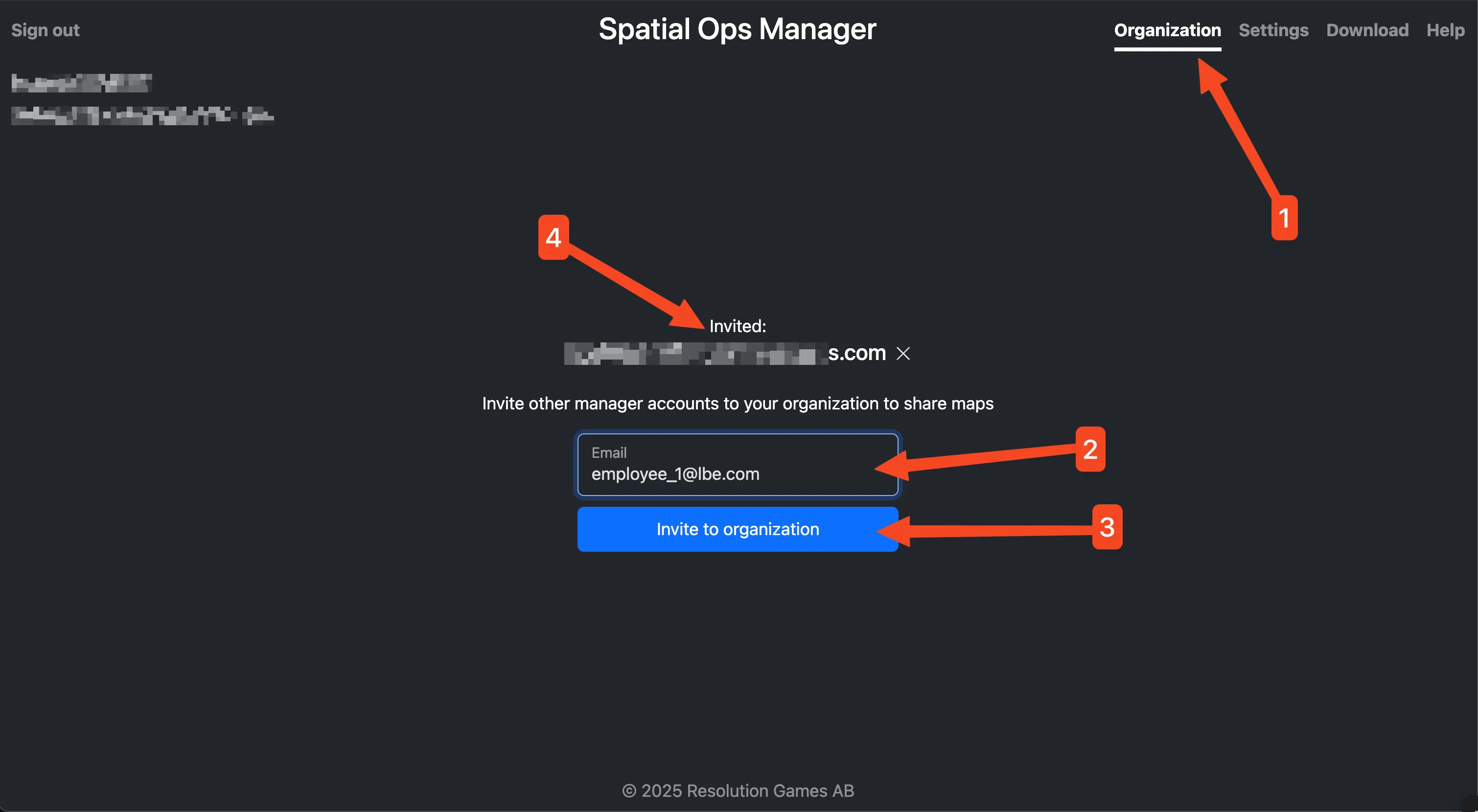
From your organization dashboard, send an invitation to that email.
-
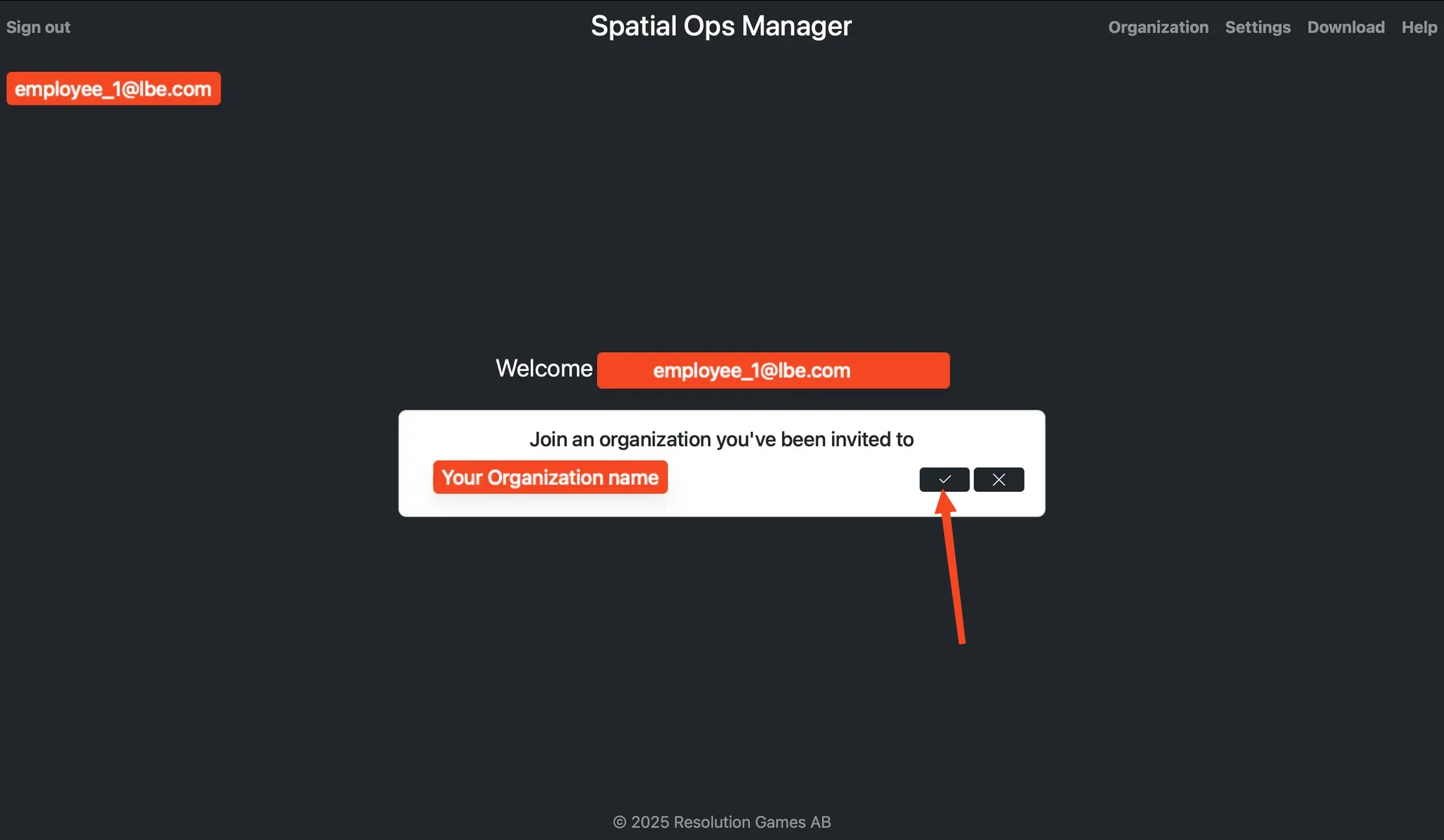
They will see a notification in their dashboard and must accept the invitation.
-
Invited users will appear under
Current manager accounts in your organization. -
From then on, they will have access to maps and devices within your organization.
Log in to the Spatial Ops Manager application
Section titled “Log in to the Spatial Ops Manager application”-
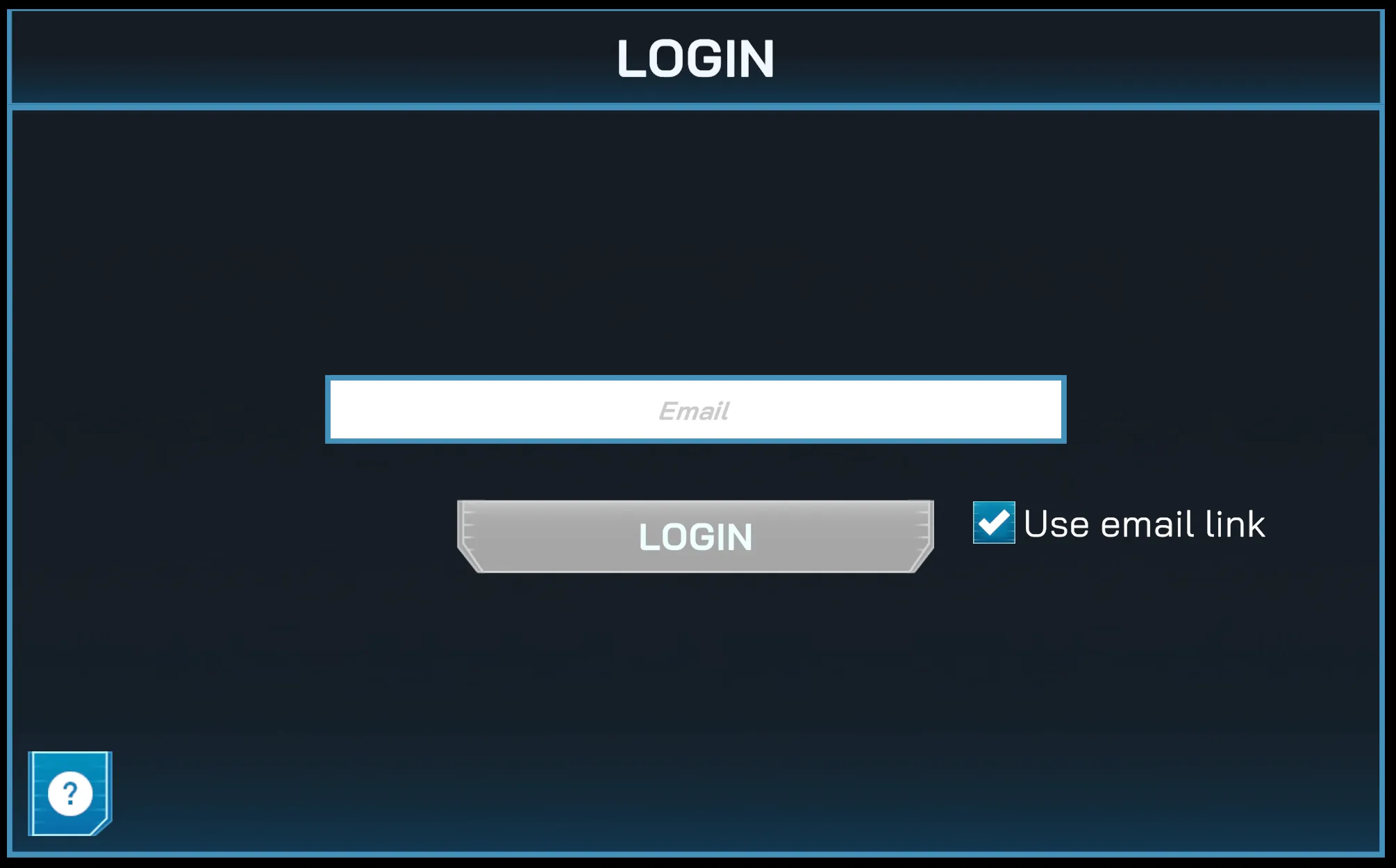
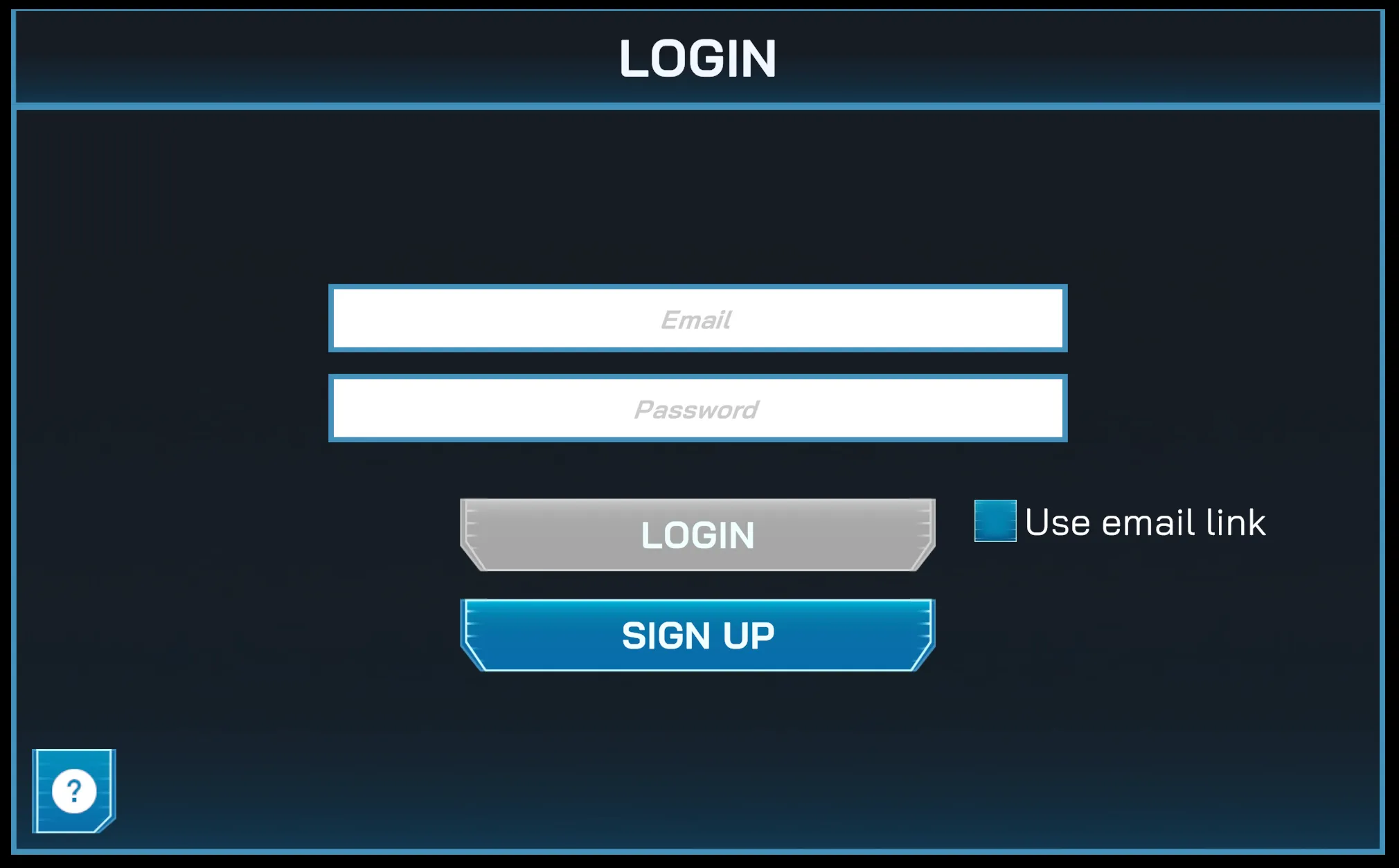
Log in with the credentials you created during registration (either owner or invited user).
-
Alternatively, use a magic link to authenticate without entering a password.